Publish endpoint pages from an OpenAPI spec alongside your help content. Each spec becomes a tab on the site, with endpoint navigation, code samples and an optional Try it playground.
Open Settings → Help center and select the site.
Open API reference → Add spec.
Enter a Name for its tab and choose URL, GitHub or Upload.
Provide an OpenAPI 3.0 or 3.1 JSON or YAML file. Uploads can be up to 15 MB.
Choose Add spec. After the first successful sync, check the generated endpoint pages on the site.
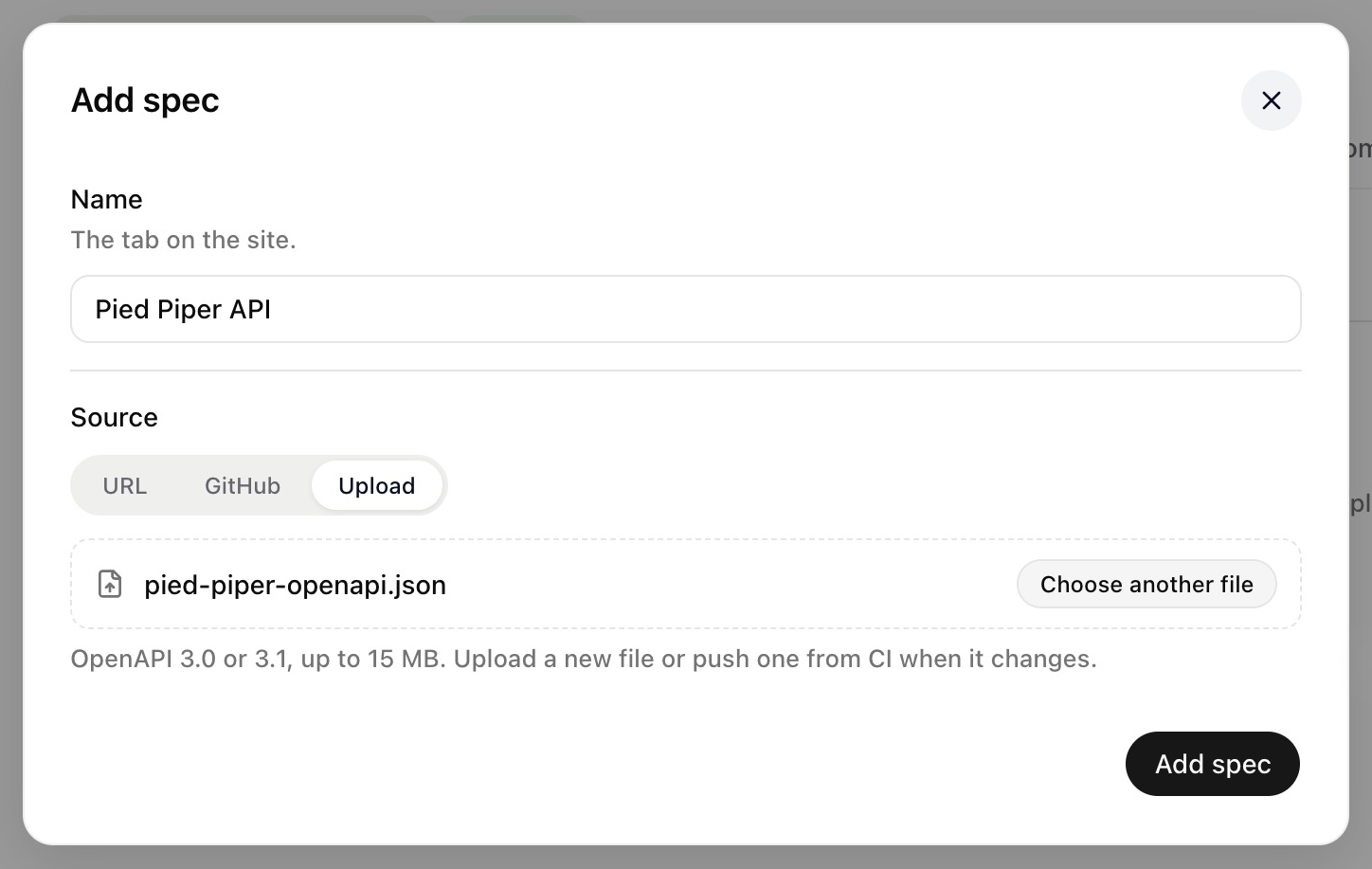
For URL, use an address Gleap can fetch; Gleap checks it every hour. For GitHub, select a repository shared with the connected GitHub app, then enter the file path and branch. It syncs on pushes. For Upload, choose the local file and upload a replacement whenever it changes.
Click a spec’s row to change its name, address or source. Those changes require Save. The settings beneath the spec save as you change them. With several specs, use Settings for to select which one you are editing.
Under Pages, choose how to group endpoints in the sidebar. Use Hide for tags or fields readers should not see; x-internal is always hidden. Guides above the endpoints lets you select a collection whose articles appear first in the tab.
Public API changelog lets readers see recent endpoint additions, changes and removals. Notify admins when syncing fails emails organization admins after three failures in a row, with one alert until the source recovers.
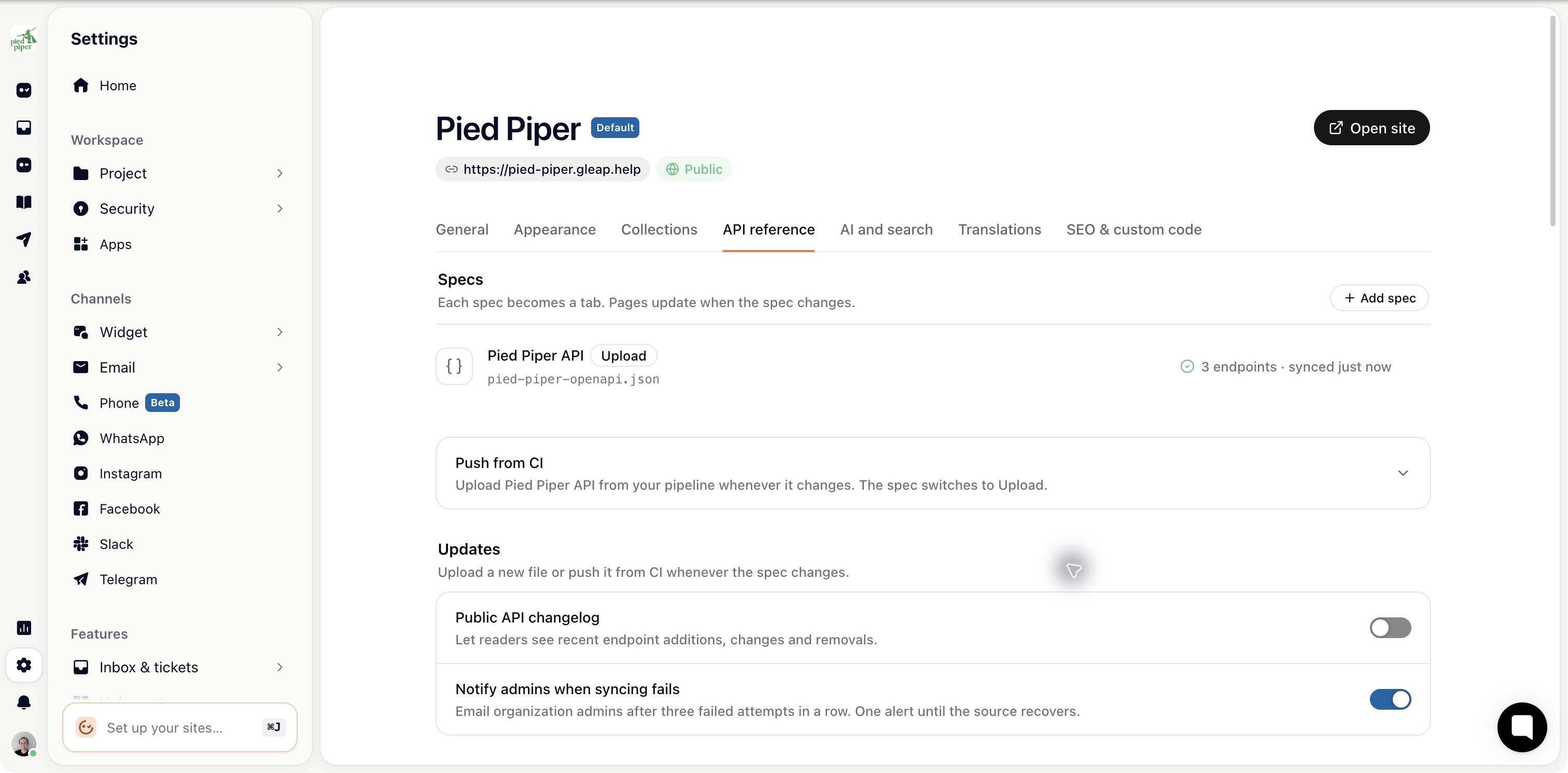
Under Who can send requests, choose:
Everyone: visitors enter their own token, which stays in their browser tab.
Signed-in visitors only: use the site’s sign-in.
Nobody: keep endpoint pages and code samples without a request playground.
Choose Through Gleap to send requests through Gleap to the servers in the spec, or From the visitor’s browser if your API allows CORS from the help center site. Fill in examples starts the form with the spec’s example values. Trying an endpoint sends a real request to the selected API, so use appropriate test credentials and data when checking it.
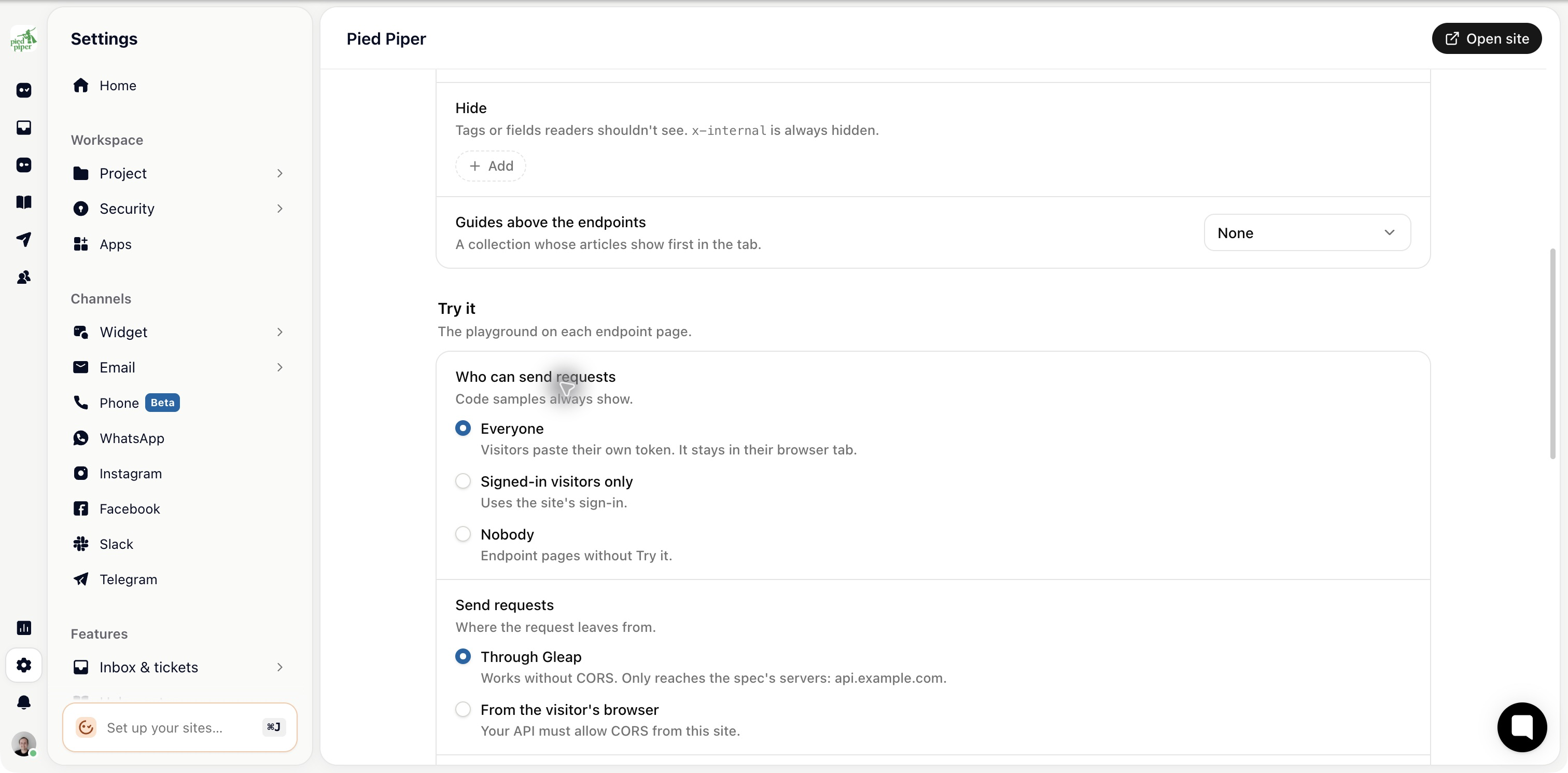
Select languages in the order you want them displayed. The visitor’s language choice is remembered. Fields in samples controls whether samples include required and example fields, required fields only, or all fields. Samples supplied in the spec as x-codeSamples take precedence over generated samples.
Sync history shows the latest 50 checks and the last successful check and content change. Expand Recent checks to see added, updated and removed endpoints. Unchanged files keep their published dates. Spec checks highlights missing descriptions, response schemas or examples; improve the source spec so readers and AI agents have useful details.
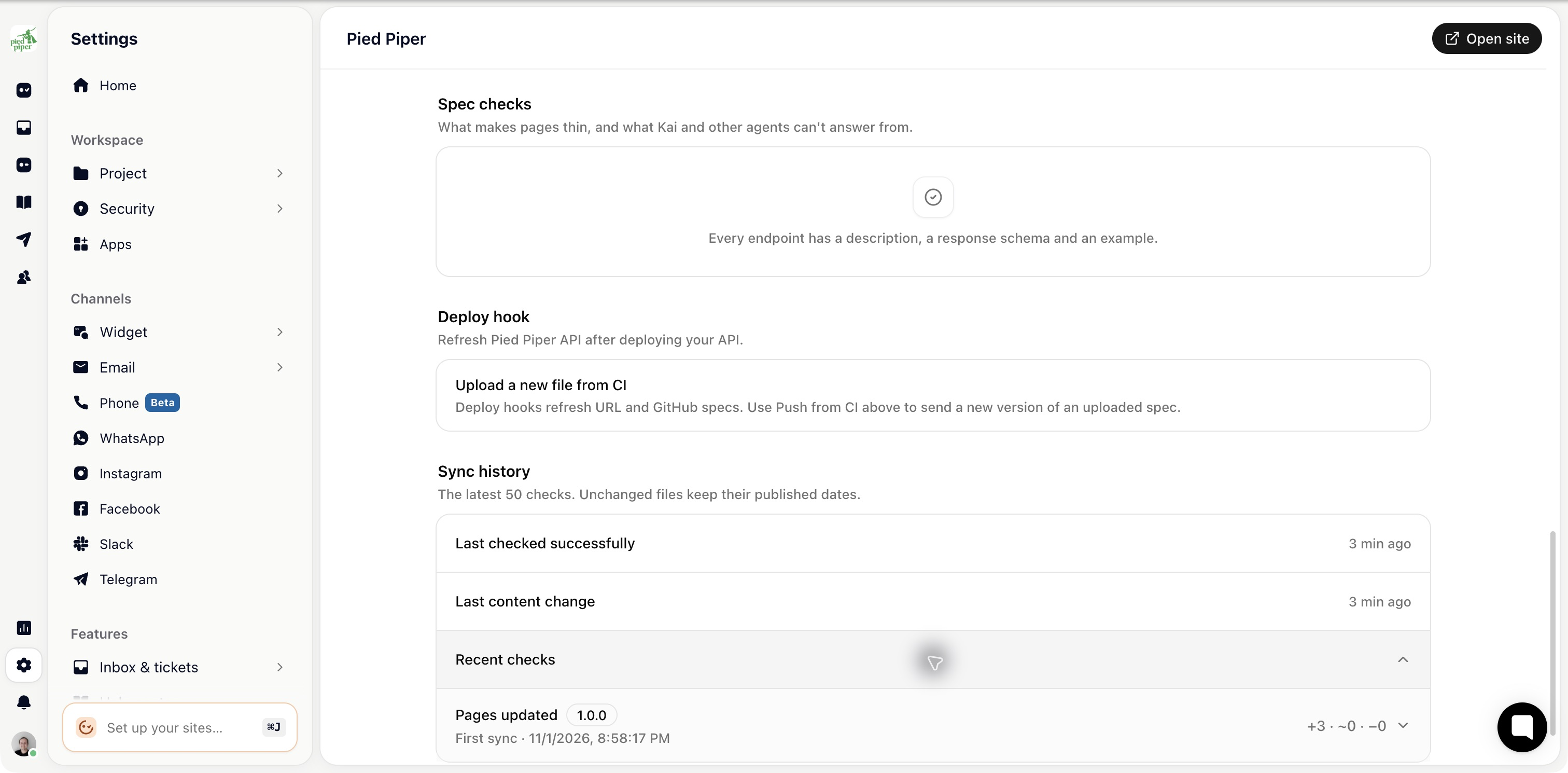
For URL and GitHub sources, a Deploy hook can refresh the spec after a deployment. For uploaded specs, expand Push from CI, store a project API key as the indicated CI secret, and use the displayed command or pipeline example to upload the new file. A CI push switches the spec’s source to Upload.
Deleting a spec also removes its generated endpoint pages. Review links to those pages before deleting it.

