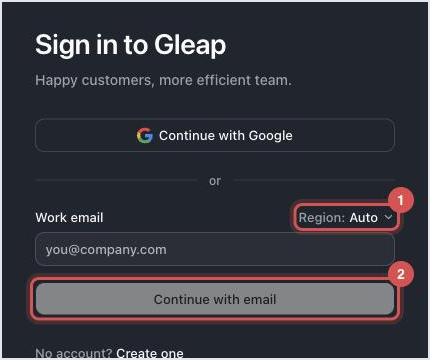
Gleap has no passwords. When you sign in with Continue with email, we send a 6-digit code to your address. The subject line starts with the code, for example "123456 is your Gleap login code". The code works for 10 minutes. If it doesn't show up, go through the checks below in order. They apply to everyone, on every plan.
Give it a minute, then search your mailbox for "Gleap login code", including spam, junk and promotions folders. Login codes come from the gleap.ai domain in both data regions. If your company filters email strictly, ask IT to allowlist gleap.ai or release the message from quarantine.
Your Gleap account is tied to one exact email address: the one you signed up or were invited with. A code goes only to that address. An alias, a forwarding address or a second domain counts as a different account. For privacy, the code page says the code is on its way "if an account exists", even when there is none, so a typo looks the same as success. Check the spelling and, if in doubt, ask a teammate to look you up in the project's user list.
Gleap runs in two data regions, EU and US. Next to Work email on the sign-in page you'll see a region option. On Auto, Gleap looks for your account in the EU first, then in the US, and sends the code from the right one. If you picked a region yourself and your account lives in the other one, the page says there's no account with this email in that region. Switch back to Auto and try again.
Once you add a passkey to your account, Gleap stops emailing login codes. After Continue with email, your browser asks for the passkey straight away. If you closed that prompt, click Try passkey again. If the passkey is on another device, pick the option to use a phone or tablet and scan the QR code with the device or password manager that holds it.
You can request a code up to three times a minute. After that, the page says it couldn't start the login. Wait a minute and try again.
Every new request replaces the previous code. Use the newest email only.
A code expires after 10 minutes. Click the back arrow, then Continue with email to get a fresh one.

Continue with Google: if your work address is a Google account, this signs you in to the account with the same address, with no code. It's offered on the web sign-in page.
Passkey: once signed in, add one under Profile → 2FA with Add passkey. Next time your device unlocks Gleap without an email.
Single sign-on: if your company uses SSO, sign in through the SSO login URL your admin shares.
If none of this helps, contact Gleap support with the address you're signing in with and your data region.

