Gleap's SDKs for iOS, Android, Flutter, React Native and Capacitor let customers report a bug without leaving your app. Each report comes with a screenshot, device details and logs, so your team and Kai can see what happened. In-app bug reporting is on every plan from Starter. App replays need Team. The setup code for each platform is in the developer docs for iOS, Android, Flutter, React Native and Capacitor.
From the messenger: the Report an issue item on the home screen opens your bug report form or a conversation with Kai. See Set up bug report and feedback forms.
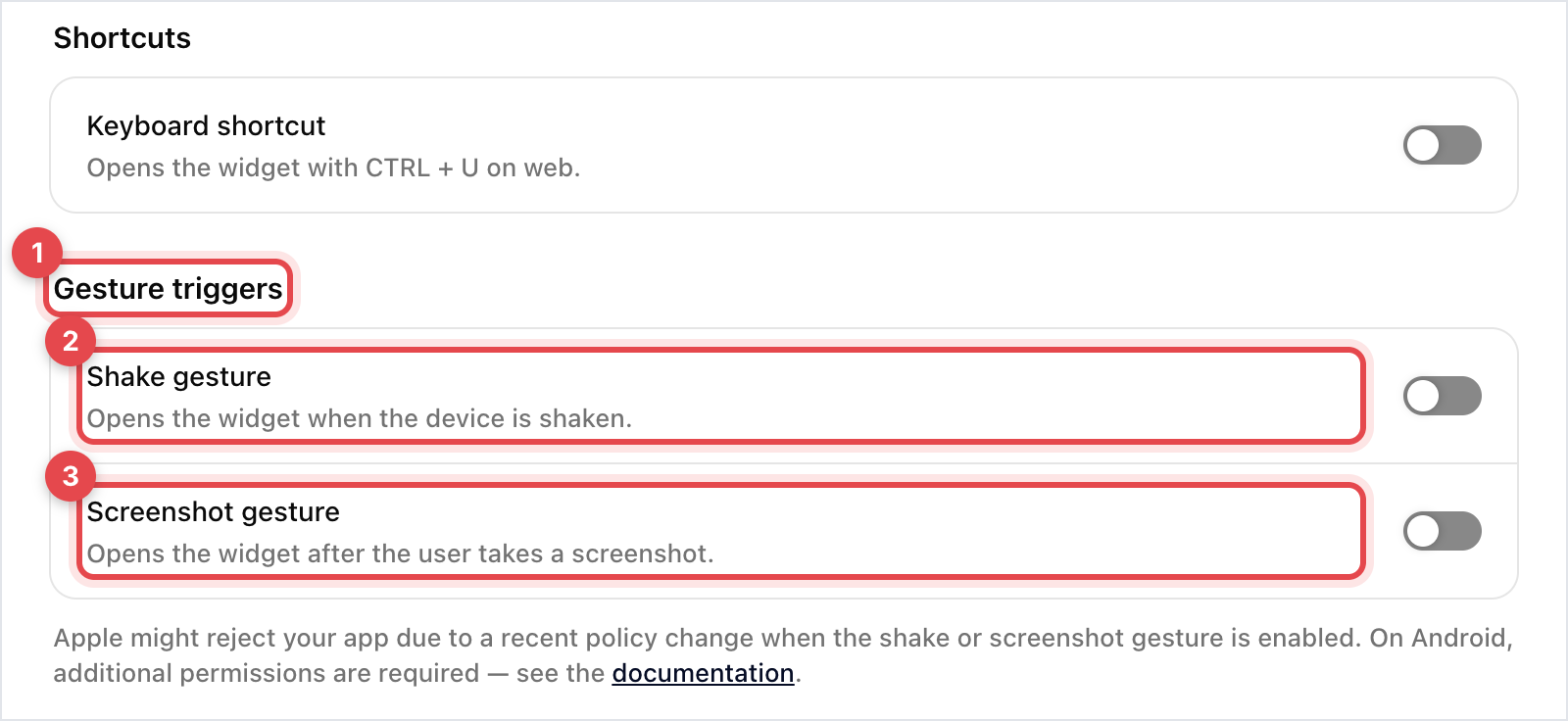
Shake or screenshot: the Shake gesture and Screenshot gesture switches in Settings → Developer → Developer options open the messenger when the device is shaken or the user takes a screenshot. Both are off by default. On Android, the screenshot gesture also needs your app to have permission to read images.
The floating button: set it up in Settings → Widget → Launcher. Pick Hidden to remove it, or show and hide it from code with showFeedbackButton.
Your own button: call open, or startFeedbackFlow with the form key bugreporting.
You can also set the gestures in code. A list set in code replaces the dashboard switches.
Platform | Values | Method |
|---|---|---|
iOS |
|
|
Android |
|
|
Flutter |
|
|
React Native |
|
|
Capacitor | None | Dashboard switches only |
Go to Settings → Developer → Developer options.
Under Gesture triggers, switch off Shake gesture.
The change saves straight away. Your app picks it up the next time the SDK loads its settings, usually when the app starts. To keep the gestures off whatever the dashboard says, set them to NONE in code: Gleap.setActivationMethods([NONE.rawValue]) on iOS, or Gleap.getInstance().setActivationMethods(new GleapActivationMethod[]{GleapActivationMethod.NONE}) on Android after initialising. Flutter and React Native have no NONE value, so use the dashboard switch there.
A screenshot of the current screen.
Env data: device model, OS version, screen size, locale, battery and more. Leave keys out with setEnvDataPropsToIgnore, or stop it with setDisableEnvData.
Console logs: on iOS, what your app prints, NSLog included; on Android, your app's logcat output. Turn them off with disableConsoleLog.
Custom data, events and attachments that you add from code.
App replays: a screenshot every few seconds before the report. Switch on App replays in Developer options. They're in beta, need Team, and aren't recommended for production apps yet.
Network logs, set up per platform:
Platform | How requests are logged |
|---|---|
iOS | Automatic once Network logs is on in Developer options. Covers every NSURLSession request, including Alamofire. |
Android | Add |
Flutter | Add the |
React Native | Automatic once Network logs is on, or after |
Capacitor | fetch and XMLHttpRequest in the web view, once Network logs is on. |
Every platform masks Authorization and cookie headers, and applies the Ignored keys and Excluded domains you set under Network logs. See the network logs guide for Android or for Flutter for the setup code.
Gleap doesn't catch crashes by itself on any platform. Call sendSilentCrashReport from your own error handler or crash reporter. It sends a report in the background with a screenshot and the usual logs, without showing anything to the user. The severity, LOW, MEDIUM or HIGH, becomes the ticket's priority. You can also pass the data to leave out.
Gleap.sendSilentCrashReport(with: "Checkout failed", andSeverity: HIGH, andDataExclusion: nil) { success in }Gleap.getInstance().sendSilentCrashReport("Checkout failed", Gleap.SEVERITY.HIGH);Gleap.sendSilentCrashReport(description: 'Checkout failed', severity: Severity.HIGH);Gleap.sendSilentCrashReport('Checkout failed', 'HIGH');When a workflow, Kai or your team asks a customer to show the issue, the customer sends a screenshot or recording of your app. On iOS and Android (SDK 19.1 and later), maskView blacks out a view in those captures, and unmaskView shows it again. Password, one-time code and card number fields are masked automatically. Flutter, React Native and Capacitor have no maskView. There, setCaptureEnabled(false) turns these captures off and the customer can upload a file instead.

The React Native SDK needs React Native 0.75 or later (Expo SDK 52 or later) and iOS 15. It doesn't run in Expo Go, because it has native code. Use a development build instead: expo prebuild, expo run:ios or expo run:android, or EAS Build. No config plugin is needed. The Expo guide has the steps.
A few features exist only in the JavaScript SDK for websites:
Product tours
The AI chatbar
Starting an agent from code with startAgent
setEnvironment, which keeps staging reports apart from production
setUrlHandler. iOS and Android have their own link handlers instead.
Surveys, news, checklists, banners, the help center and conversations all work in apps too.

