Every message you send from Outreach has its own results page. It shows how many people got the message, and for emails who opened it and which links they clicked. You can export the recipients as a CSV file. What you see depends on the kind of message.
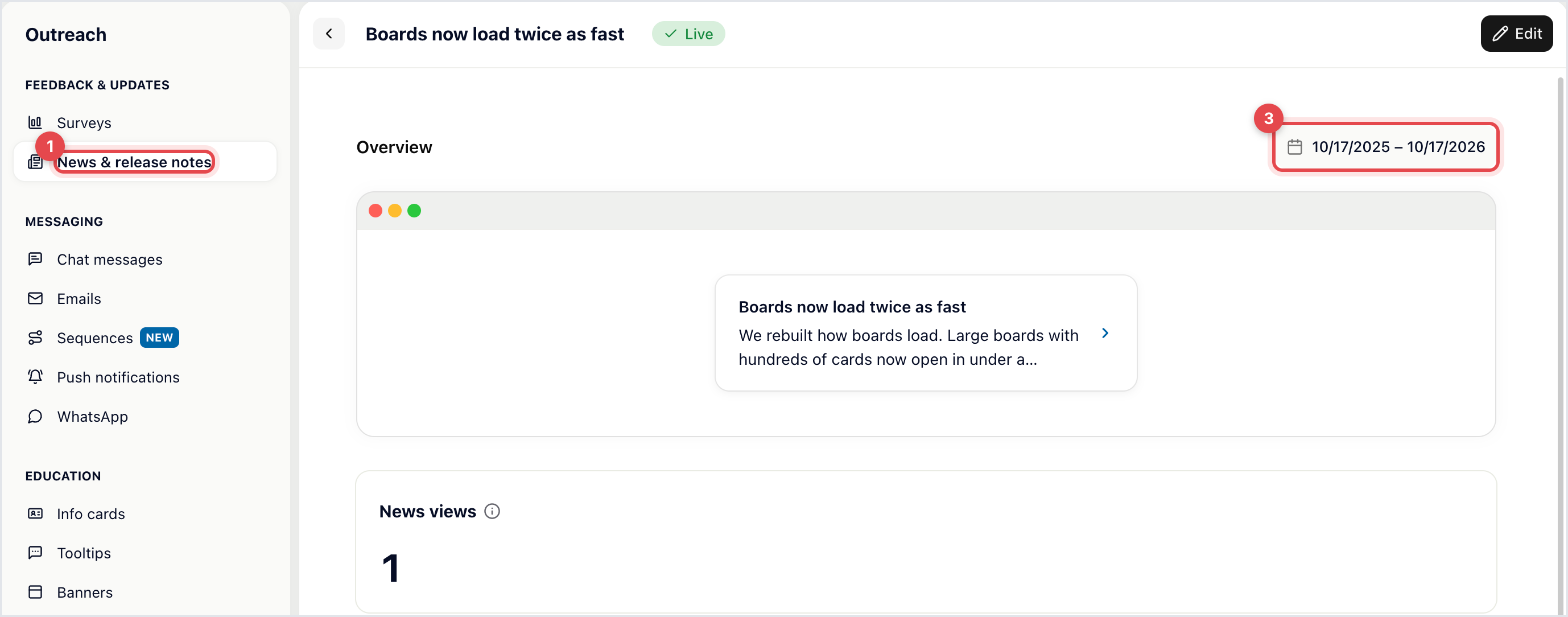
Go to Outreach and pick the kind of message, for example Emails, Checklists or News & release notes.
Click the message in the list.
Choose a period with the date range at the top. It starts with the last year.
The Overview tab shows the main numbers. Recipients lists every person who got the message.
Emails have an extra Statistics tab:
Sent, Delivered, Open rate, Click rate, Bounces and Spam complaints. Open and click rates are counted against delivered emails.
Delivery funnel: sent, delivered, opened and clicked.
Activity over time: sends, opens, bounces and complaints per day.
Top links: how many recipients clicked each link.
Bounce reasons and Bounced addresses: why emails didn't arrive, and to whom.

Message | What the Overview shows |
|---|---|
Chat messages and WhatsApp | How many were sent |
Info cards | How many times they were viewed |
Checklists | How many were sent and completed, and a funnel of each step |
Product tours | How many were sent and completed |
Surveys | Responses and sends. Full results are on the survey's results page |
News | News views and Views over time |
Banners, push and tooltips | A preview, no statistics |
News items show a view count only. There's no list of who viewed them.
Open the Recipients tab.
For emails, filter by Opened, Links clicked or Not opened. Use Search recipients… to find a person.
Click Export CSV.
The file lists each recipient with their name, email, user ID, when it was sent and, for emails, whether they opened it and which links they clicked.
For surveys, export the answers from the Responses tab with Export responses, as CSV or JSON.

