When you archive a ticket, Gleap keeps it in the archive for a set time and then deletes it for good. By default that's 365 days. You can shorten the period, or keep archived tickets forever on the Pro plan. Changing these settings needs access to the project settings.
Only archived tickets are deleted. Tickets that are still in your inbox, open or closed, stay until you archive them.
Archived tickets are deleted 365 days after they were archived, or after the period you set (1–365 days).
AI-only conversations (the ones in the Bots view) that are still open after about three days are closed and moved to the archive. Once archived, they're deleted after 30 days, or sooner if your period is shorter. This applies even when you keep archived tickets forever.
When Kai hands a conversation to your team, it becomes a regular ticket in your inbox and follows the archived-ticket rules.
Console logs, network logs and the ticket activity history are kept for 180 days.
Deletion runs every night. It removes the ticket with its messages, files and attachments, scheduled replies and history. If you use a ticket deleted webhook, it's sent for each ticket the run deletes.
Go to Settings → Project → General and scroll to Data retention.
In Delete archived tickets after, enter the number of days, from 1 to 365.
Click outside the field. The value saves on its own.
From the next nightly run, archived tickets older than your period are deleted.
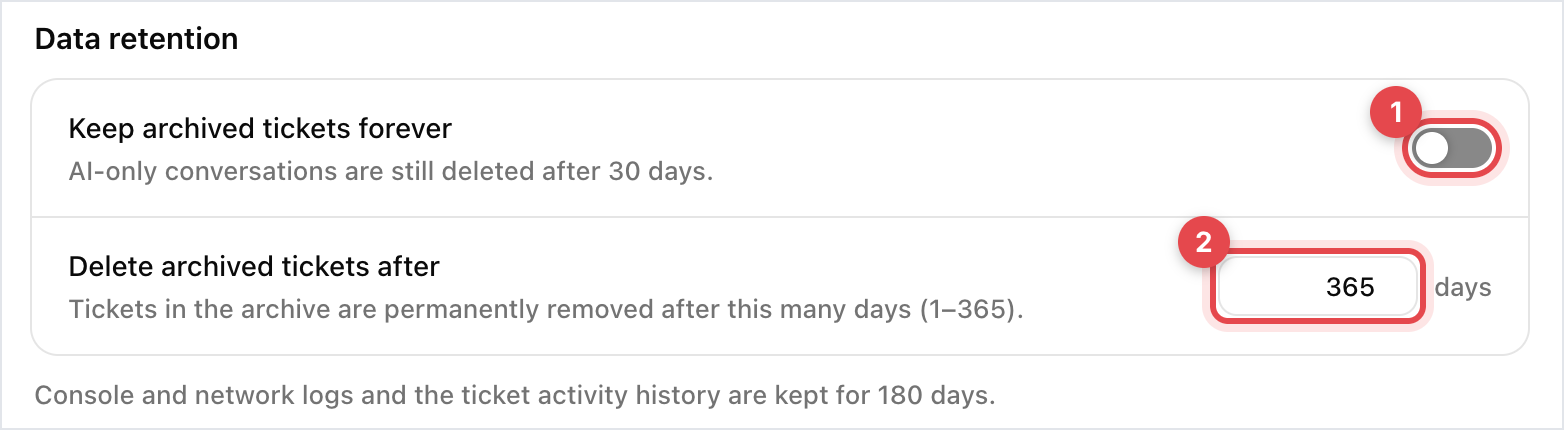

On the Pro plan, you can stop the deletion of archived tickets completely.
Go to Settings → Project → General and scroll to Data retention.
Turn on Keep archived tickets forever. If your plan doesn't include it, you'll see a Pro badge and the switch opens an upgrade dialog instead.
The days field disappears while the switch is on. AI-only conversations are still deleted 30 days after they were archived.
If your plan later changes to one without this feature, your archived tickets are kept for 30 more days and your admins get an email. The setting shows the date when deletion starts again. After that date the switch turns off and your project's period applies again.
In the Inbox, click Archive at the bottom of the list of views.
Pick a tab: Inbox for archived tickets, Bots for AI-only conversations, Spam, or Waiting for customer. You can also filter by date.
Hover over a conversation and click Restore.
The conversation goes back to your inbox and is no longer counted towards the archive period. A conversation that's due for deletion within 30 days shows how many days it has left, for example "deletes in 12d".

Topic Explorer keeps the topic, sentiment and date of each deleted ticket, without its content, so your contact-reason trends reach back further than the tickets themselves.
Most report numbers come from events recorded at the time, and they stay. Lists that show the tickets themselves, such as rated conversations, only include tickets that still exist.

