Topic explorer sorts your closed conversations into topics, so you can see what customers actually ask about, how big each topic is and which ones leave customers unhappy. It's a good place to decide which help article to write next or which bug to fix first. Available on Team and up. Topic explorer is in beta.
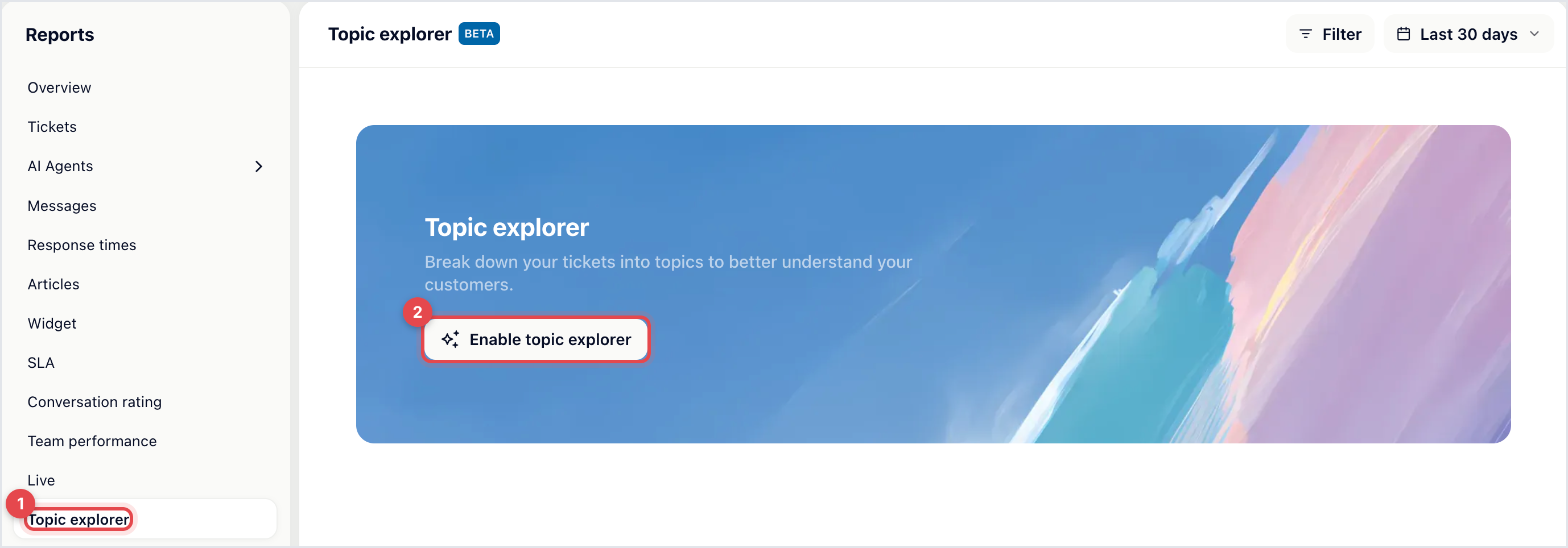
Go to Reports → Topic explorer.
Click Enable topic explorer.
Wait a few minutes while Gleap analyses your conversations. You see "Topics created successfully" when it's done.
Your project needs at least 100 tickets. With fewer, Gleap shows an error and you can try again later.
Gleap's AI reads up to 300 recent closed conversations and builds a fixed list of topics, each with a few subtopics. Topic names are written in your project's summary language. After that, every closed conversation is sorted into exactly one subtopic, and Gleap records its sentiment and a CX score at the same time.
Two topics are always there:
Not a support request: automated notifications, newsletters and marketing, spam and phishing, and empty or misdirected messages.
Other request: requests that fit none of your topics.
With Hourly updates on, newly closed conversations are sorted into the list every hour. A conversation shows up in the first hourly run after it's closed.
The treemap and the table show the same topics:
Conversations: how many conversations landed in the topic.
Share: its percentage of all sorted conversations.
Avg. CX score: the average customer experience score, from 0 to 100.
Negative: the share of conversations with negative sentiment.
Click a topic to see its subtopics, then a subtopic to list its tickets, newest first. Each ticket shows its sentiment and CX score, and opens when you click it.
Use Type to limit the report to certain ticket types, and the date range to pick a period. The date range uses the date a ticket was created, not when it was closed.
Your topics stay the same until you rebuild them. When the status line says a large share of requests landed in Other request, customers are asking about something new.
Click Rebuild topics.
Confirm with Yes, rebuild.
Gleap builds a new list from recent conversations and sorts the last 90 days of closed conversations into it. The old topics are replaced. If the rebuild fails, your current list stays as it is.

Closed conversations of every channel, including archived ones. Surveys and crash reports are left out. AI-only conversations count only when the customer actually asked for something. When archived tickets are deleted under your data retention setting, their topic counts stay in the report, but the tickets no longer appear in the list.

