Every teammate decides for themselves what Gleap tells them about and how. Your choices apply to you only, in every project you belong to. No admin rights or plan are needed. Everything lives on one page: Profile → Notifications, which you reach from your avatar in the sidebar.
Desktop notifications are the pop-ups your computer shows while Gleap is open in a browser tab, even when you're looking at another window.
Open Profile → Notifications.
Under Desktop notifications, click Enable notifications.
When your browser asks whether Gleap may show notifications, allow it.
The row now shows an Enabled badge, and a Resubscribe row appears below it. Each browser and computer is set up separately, so repeat this on every device you work from.
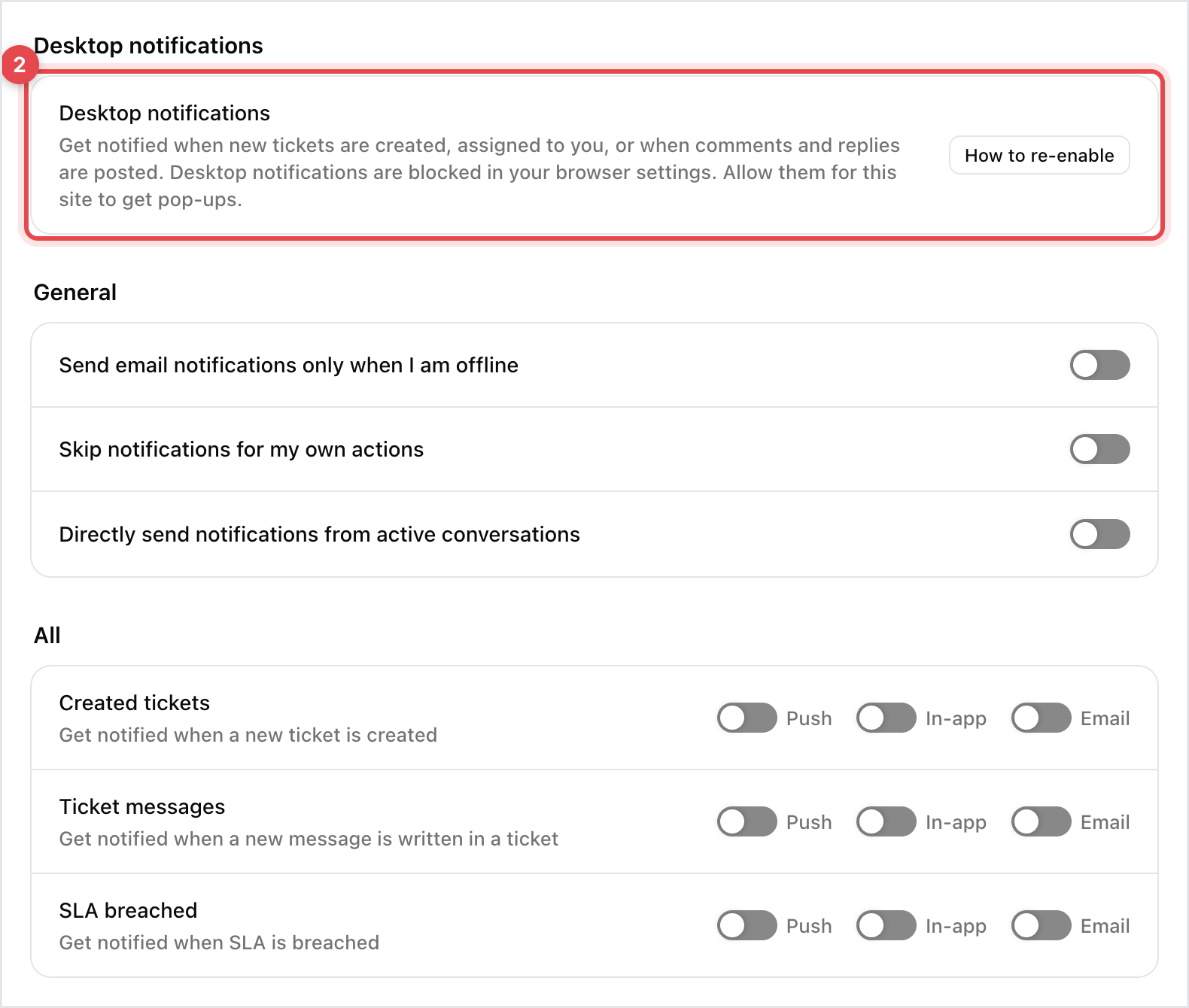
Below the general switches, every event has up to three switches, one per channel:
Push: a pop-up on your computer (browser or desktop app) and a push notification on your phone if you use the Gleap app.
In-app: an entry under the bell in the sidebar, with a short sound while the dashboard is open.
Email: a message to the address you sign in with.
These are the events, grouped as on the page:
Group | Event | When it fires | On by default |
|---|---|---|---|
All | Created tickets | A new ticket is created | Push, In-app |
All | Ticket messages | A new message is written in any ticket | Nothing |
All | SLA breached | A ticket breaches its SLA | Push, In-app |
Personal | Assignment | You are assigned to a ticket | Push, In-app |
Personal | Ticket messages | A new message arrives in a ticket assigned to you | Push, In-app |
Personal | Mention | Someone mentions you in a ticket | Push, In-app |
Personal | Reactions | Someone reacts to your message | In-app |
Personal | Thread replies | Someone replies in a thread you take part in | Push, In-app |
Team | Assignment | A ticket is assigned to one of your teams | Push, In-app |
Team | Ticket messages | A new message arrives in a ticket assigned to one of your teams | Push |
Agent tasks | Created tasks | A new agent task is created | Nothing |
Agent tasks | Assignment | You are assigned to an agent task | Push, In-app |
Agent tasks | Input needed | An agent needs your input on a ticket | Push, In-app |
Email is off for every event until you switch it on. To get an email when a ticket is assigned to you, for example, turn on Email next to Assignment in the Personal group. Reactions, thread replies and input requests have no email option.
You can open the same switches from the gear icon at the top of the notifications panel under the bell.
Send email notifications only when I am offline: Gleap emails you only if you haven't been active in the dashboard for the last two minutes. While you're working, push and in-app notifications still arrive.
Skip notifications for my own actions: nothing reaches you about things you did yourself, such as a reply you wrote.
While the dashboard is open, each new in-app notification plays a short sound. To silence it, open the bell and click the speaker icon (Mute notifications). The choice is remembered per browser.
The Gleap desktop app for macOS, Windows and Linux is available at gleap.io/downloads. In the app, the Desktop notifications row always shows Enabled: the app shows its own pop-ups, so there's nothing to set up. It shows a pop-up for events that have In-app switched on, unless you switch Push off for that event.
On iPhone, iPad and Android, install the Gleap app and allow notifications when it asks. The Push switches on this page decide what reaches your phone too. See Use Gleap on your phone.
Your browser is not supported yet with an Unavailable badge: this browser can't receive Gleap's pop-ups. Try another up-to-date browser, or use the desktop app.
How to re-enable: notifications for Gleap are blocked in your browser's site settings. Allow them there, then come back to the page.
Finish setup: the browser allowed notifications but this device isn't registered yet. Click it once.
Everything says Enabled but nothing pops up: click Resubscribe. This re-registers the current browser.
Check your computer's own notification settings (Focus or Do Not Disturb) and that the event's Push switch is on.
Nothing arrives for things you did yourself: that's Skip notifications for my own actions.


