A workflow is a trigger plus a sequence of steps, drawn as a flow you can follow with your eyes. That visibility is the main thing that keeps it maintainable. Workflows live under AI agents → Workflows. A new workflow starts as a draft, and nothing reaches customers until you publish it.
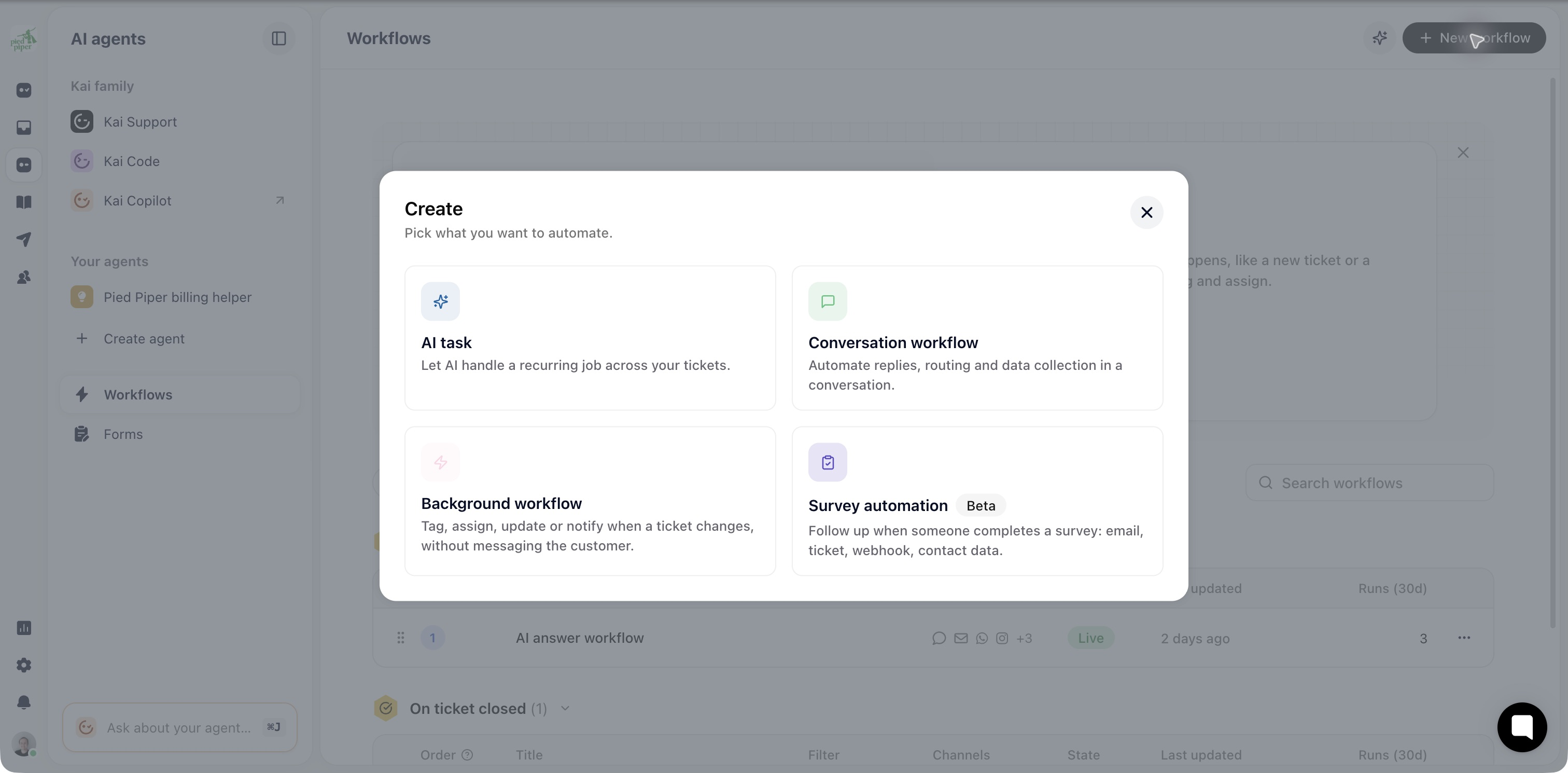
Go to AI agents, click Workflows in the AI agents sidebar, then click New workflow.
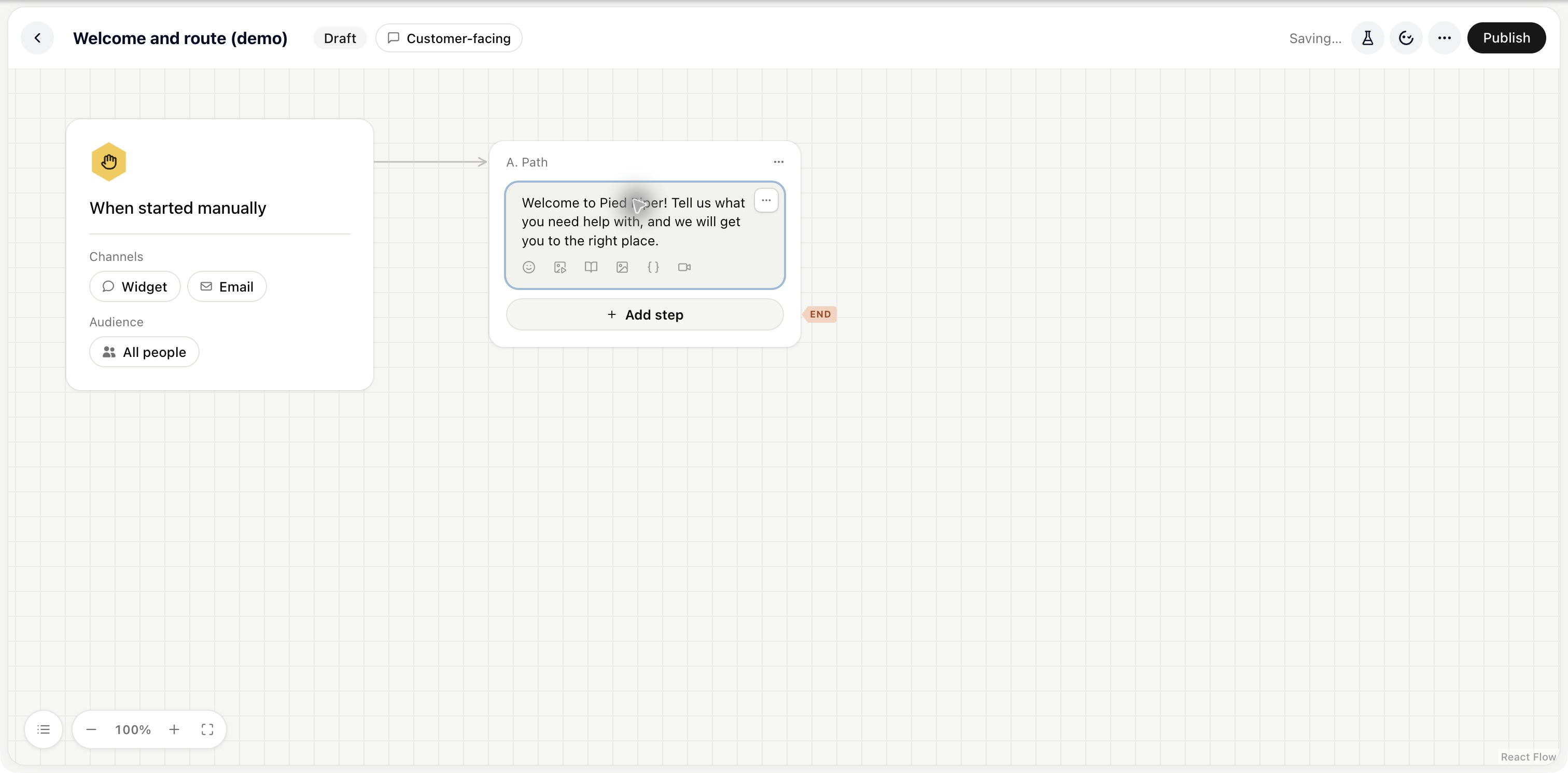
In the Create dialog, choose Conversation workflow. The builder opens with a new draft. Click the title in the header to rename it.
Click the trigger card at the top of the canvas. It reads When started manually until you pick a trigger.
In the Trigger panel, choose a trigger, such as On ticket created, then pick the channels under Platform and who it runs for under Audience.
Under the trigger, click Add step (or pick one of the suggestions under Choose what's next). Type in Search steps or browse the categories.
Add the next steps the same way. A good first shape is short: Write a message, Reply buttons with two or three options, and Let Kai Support answer on the path that needs it.
Click Test to run it in the messenger yourself. See Test a workflow before publishing it.
Click Publish. If anything is missing, a list such as Fix 2 things to publish appears instead; click an item to jump to the step. Once published, the badge changes from Draft to Live.
The step picker groups steps by what they do: AI actions, Customer interaction, Ticket management, Workflow & integration and Branching & navigation (plus Pipeline on pipeline workflows). Every step is described in Workflow steps reference.
Ticket lifecycle: On ticket created, On ticket reopened, On ticket closed, On ticket status update, On ticket due date.
Silence: On no customer response (after agent message), On no agent reply. Both can be limited to office hours or outside them.
Messages: On customer comment, On agent comment, On agent note.
AI: AI based trigger, On AI question.
No automatic trigger: the workflow only runs when another workflow passes to it or your code starts it.
Pipeline automations (On entry added to pipeline, On stage changed) live under Contacts → Pipeline workflows, and survey automations use On survey completed.
The kind follows from the steps. A workflow that sends messages or asks the customer something is customer-facing; one that only tags, assigns or updates is background. The chip in the builder header shows which it is and why.
For each trigger, the first customer-facing workflow that matches runs. Set the order in the Workflows list by dragging rows, or with Move up and Move down in a row's menu.
Every matching background workflow runs, so their order doesn't matter.
You'll branch with two steps most of the time. Reply buttons let the customer choose the path; Condition chooses it for them based on what you know, such as their plan, their language or a field that's already set. A condition can also be an AI condition, a yes-or-no question in plain language that the AI answers from the customer's messages. Buttons from API and Give Kai Support a task (with a Completed and a Failed path) branch too.
Prefer a condition where you can. Every button is a decision you're asking a customer to make, and they'd usually rather you made it: someone on an enterprise plan shouldn't have to tell you they're on an enterprise plan.

With Pass to workflow, a workflow hands over to another one, which is how you keep a shared piece in one place. If three flows all end by collecting an email address and confirming, that ending belongs in its own workflow they each pass to.
A Wait step pauses the flow for seconds, minutes, hours or days. Its best use is timing something that's due later, such as a follow-up the next day. Used to pace out a long sequence, it just makes customers wait for a machine.
Drafts save on their own a moment after each change; the header shows Saving… and then Saved.
Live workflows keep running unchanged while you edit. Your edits are held as Unpublished changes until you click Publish changes. Leaving the builder without publishing asks you to confirm.
In the header's ⋯ menu, Discard changes drops your edits and Unpublish takes the workflow offline. Drafts can be deleted from the same menu; live workflows must be unpublished first.
There's no version history, so note what you change on a busy workflow before you publish it.
Duplicate in a workflow's row menu creates a draft called "Copy of …" in the same project. Workflows can't be copied to another project: there's no export, import or copy-to-project option, and "Copy configuration from existing project" when you create a project doesn't include workflows. To use a workflow in another project, rebuild it there.
Read the flow once as a customer would experience it, not as a diagram. Ask whether someone who doesn't have the problem you designed for can still get out, and whether anything asks for information you already have. Then test it.

