You don't have to leave a conversation to use an AI agent on it. The ticket sidebar has an AI agents tab next to Details, where you can ask an agent for a draft, an investigation or a lookup with the whole thread already in front of it. This works with Kai and with the custom agents you've built, on Team and up.
In the Inbox, open the conversation.
In the ticket sidebar, click the AI agents tab. Press D to switch between Details and AI agents. The tab opens on the agent that was last active on this ticket, or on Kai Copilot if none has been yet.
To ask a different agent, click its avatar in the row at the top of the tab, or click + and pick one. + also lists Kai Support, and Start new coding session starts Kai Code on the ticket.
Type your request in the Message … box at the bottom, named after the agent (for example Message Kai Copilot…), and send it. The agent answers in the tab, where your team can see it.
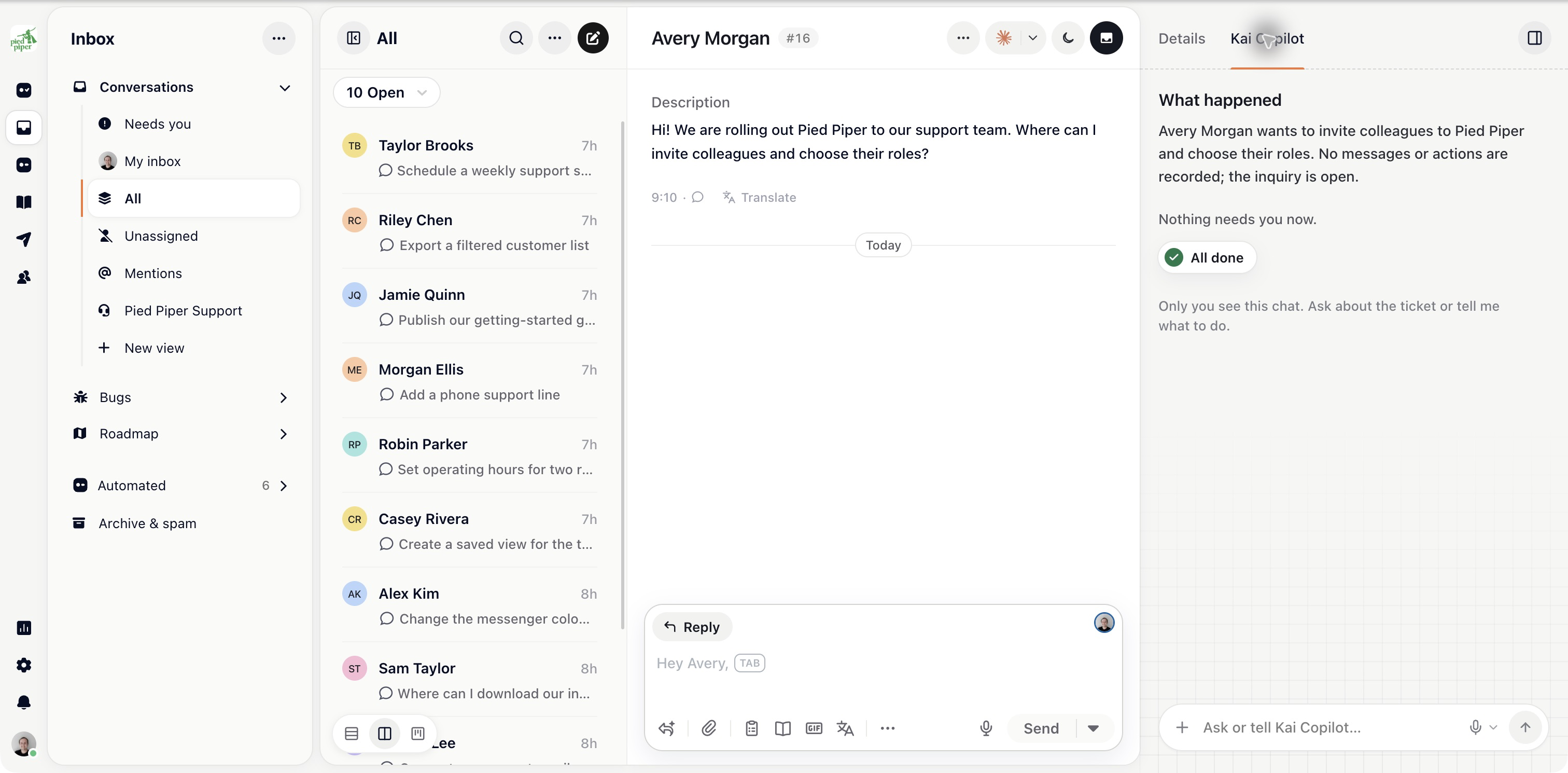
The row at the top shows the agents that have already worked on this ticket. The others are under +.

Drafting a reply you then edit, which is faster than starting from an empty box on a long thread.
Looking something up in a system the agent has a tool for, without switching tabs.
Asking a specialist agent about a case outside your area, such as a billing question landing with a technical teammate.
Starting a code investigation on a bug report, so the thread carries the finding.
Ask for a draft and the agent writes it into your reply composer, so you don't copy it by hand. It arrives wrapped in the greeting and closing your project uses, so it reads as if your team wrote it, with names filled in.
Read it before sending. A draft is confident by construction; whether it's right depends on the content it drew on, and you're the one who knows this customer.
It works the other way round too. An agent that hits something it can't decide stops and asks. The AI agents tab then shows a count, and the conversation appears in the Needs you view until someone answers. A run waiting on a question is a customer waiting too, so check that view daily if you run agents.
Kai Copilot also has its own place in the main navigation. Use its chat for work across Gleap; use the ticket’s AI area when the request is about that conversation. Get started with Kai Copilot explains its chats, routines and artifacts.

