If your documentation lives outside Gleap, crawling it is the fastest way to make it answerable. Kai Support reads the pages and keeps re-reading them on a schedule. Every plan can crawl a website. How much depends on the plan (see the limits at the end).
Open Knowledge → Websites.
Choose Add website. The Add new URL source dialog opens.
Choose URL to start from a page, or Sitemap to give an XML sitemap.
Enter the address. Add Tags if you want to scope this content later, for example internal.
With URL, keep Follow links on and set Include paths, such as /docs/*, so the crawler stays in your documentation. Use Exclude paths for sections inside it that don't belong.
Open Advanced options if you want to keep only the main content of each page (see below).
Leave Automatic recrawl on and pick a Frequency.
Choose Crawl.
The site appears in the list as Pending, then Crawling, then Indexed once it's done.
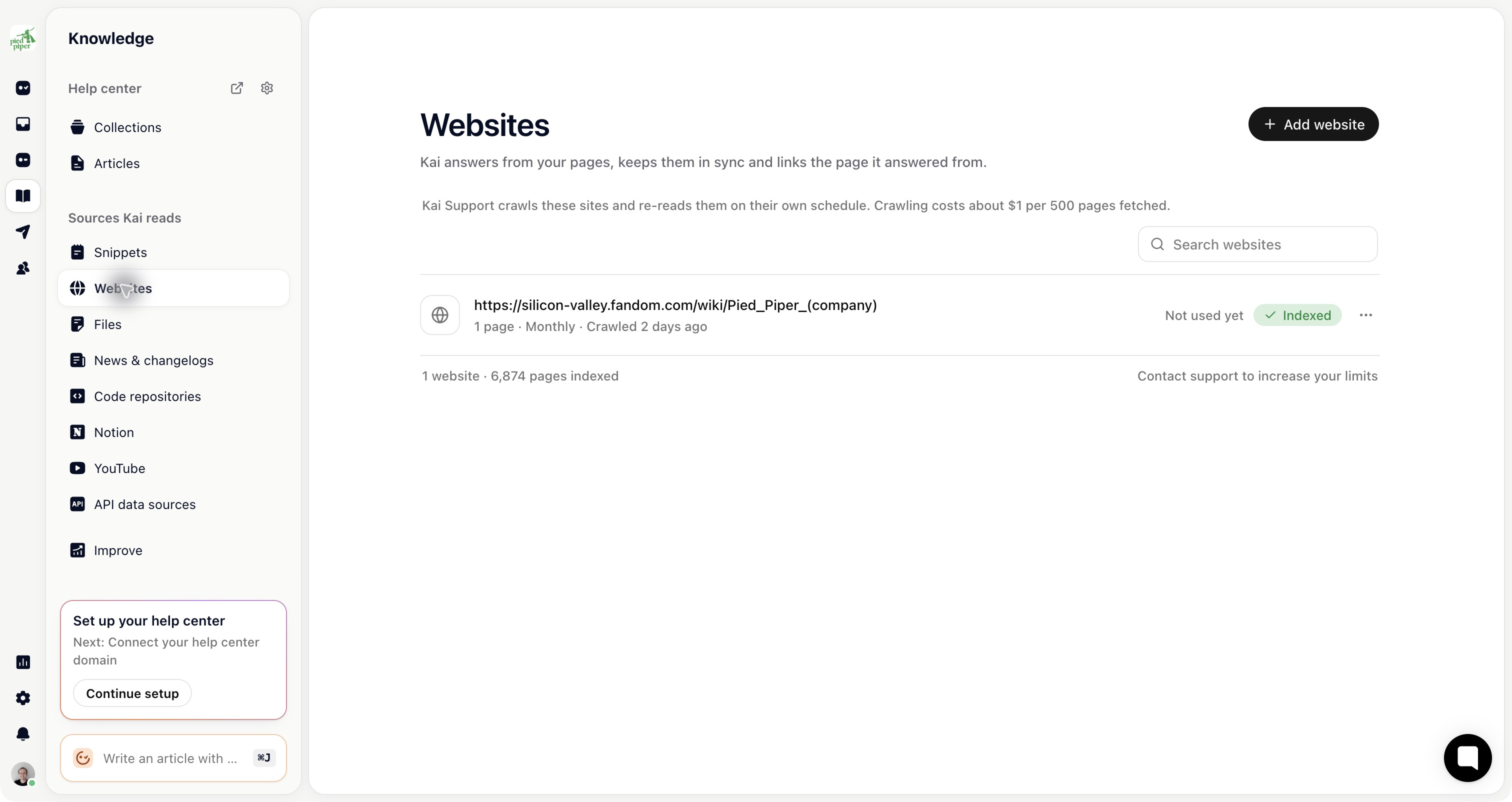
A sitemap is the better choice when you have one. It tells the crawler exactly which pages exist instead of leaving it to find them by following links.

Under Advanced options, Include tags and Exclude tags take CSS selectors separated by commas, such as article, #title. Without them, every page brings its navigation, footer and cookie banner along, and the same boilerplate shows up hundreds of times in what the AI reads. Including the main content element alone usually gives a much cleaner result than any amount of path filtering.
The same section has:
Ignore query parameters, so one page isn't collected many times over because of tracking or filter parameters.
Add custom headers, for pages that need a header to load, such as a token or a staging bypass.
Limit crawl speed, with Max. parallel requests and Delay between requests (seconds). Use it if the site is on modest hosting.
A crawl is a snapshot. A source that quietly describes last quarter's product is worse than none, because the AI can't tell its information has aged. Keep Automatic recrawl on.
To recrawl by hand after a documentation update, open the website's menu in the list and choose Re-crawl. On current plans you can do that once a day per website. To change tags, recrawl frequency or crawl speed later, choose Edit.
On current plans, if Kai Support hasn't cited a website for 90 days, its scheduled recrawls pause until it's cited again or you recrawl it by hand. The list then shows "Paused: not cited by Kai Support in 90 days".
Open the website's menu and choose View pages to see every page that was collected. Look at the list the first time. It's the quickest way to find out you indexed three hundred blog posts, or that the pages you wanted are missing because the crawler couldn't read how they're rendered. If a crawl shows Failed, choose Resolve issue for help.
Plan | Pages in total | Recrawl at most |
|---|---|---|
Starter | 1,000 (one website) | Monthly |
Team | 2,500 | Weekly |
Pro | 10,000 | Weekly, or daily for websites up to 500 pages |
Enterprise | 50,000 | Daily |
Page limits count every website in the workspace together. Workspaces on plans from before the 2026 pricing keep their previous limits.