A sequence sends one contact a series of messages over days or weeks: emails, chat messages, surveys, push notifications and WhatsApp messages, with waits and checks in between. It reacts to what each person does, so someone who already invited a teammate never gets the "invite a teammate" nudge. Use it for onboarding, trial conversion and winning back quiet customers. You'll find it under Outreach → Sequences. Sequences are part of Outreach, available on the Team plan and up.
Go to Outreach → Sequences and click New sequence.
Pick a starting point: Onboarding, Trial conversion, Win back or Start from scratch.
Click the When it starts card at the top and choose who starts it: You add them by hand, When an event happens or When a contact is created. Under Who can join you can narrow it down, and Joining again decides whether someone can go through it twice.
Click + between two steps to add a step, then fill it in on the right.
Click Preview as… to see every message the way a real contact would get it, with their details filled in.
Click Turn on. From now on, the sequence adds contacts as its triggers fire.
Messages: Email, Chat message, Survey, Push notification and WhatsApp.
Timing: Wait pauses before the next step. Business days skip weekends. Wait until… waits until the contact does something, like inviting a teammate, up to a time limit, and splits into Did it and Didn't.
Logic: If / else sends people down Yes or No.
Actions: Add or remove a tag, Update contact data, Add to pipeline, Start another sequence and End here.
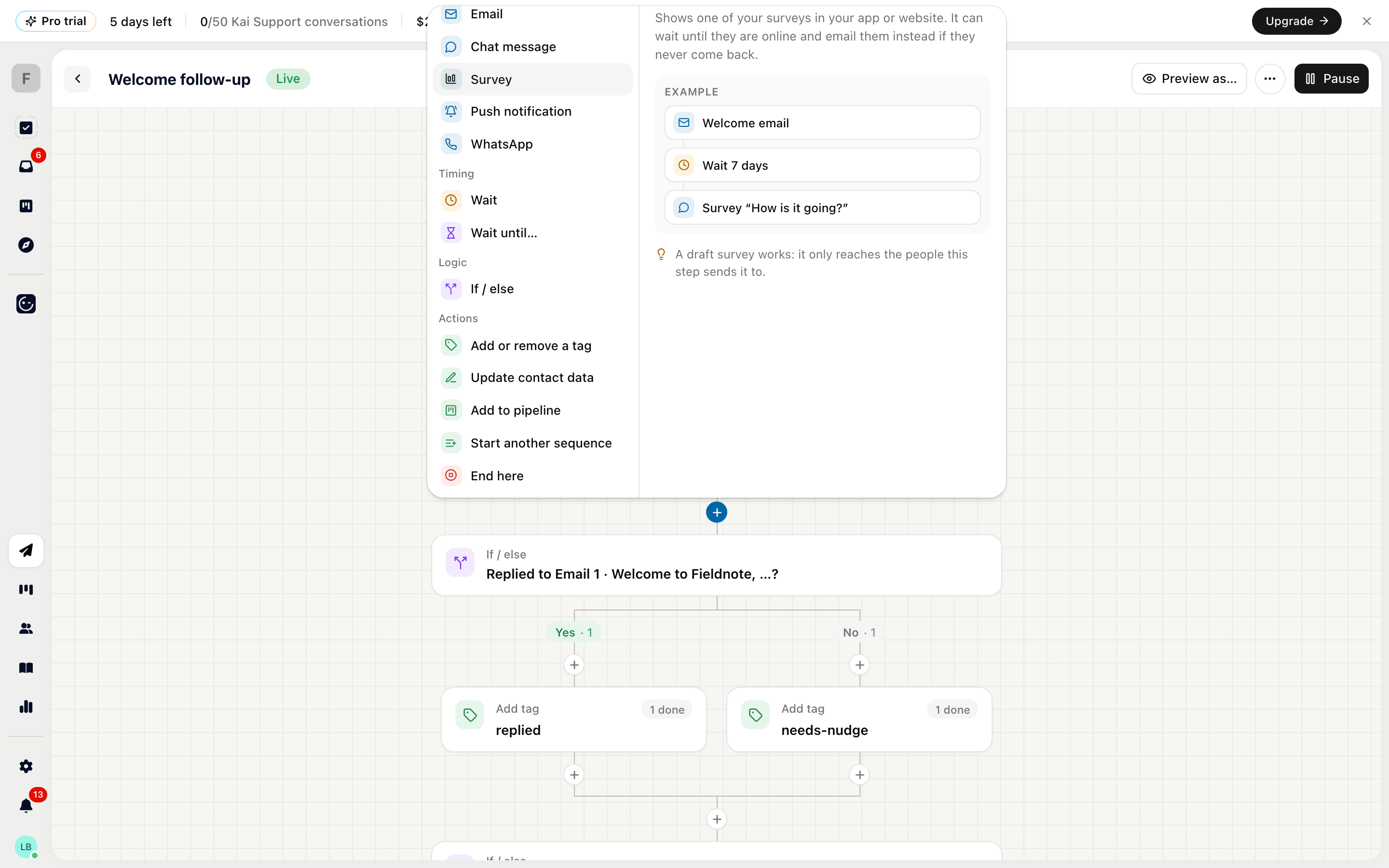
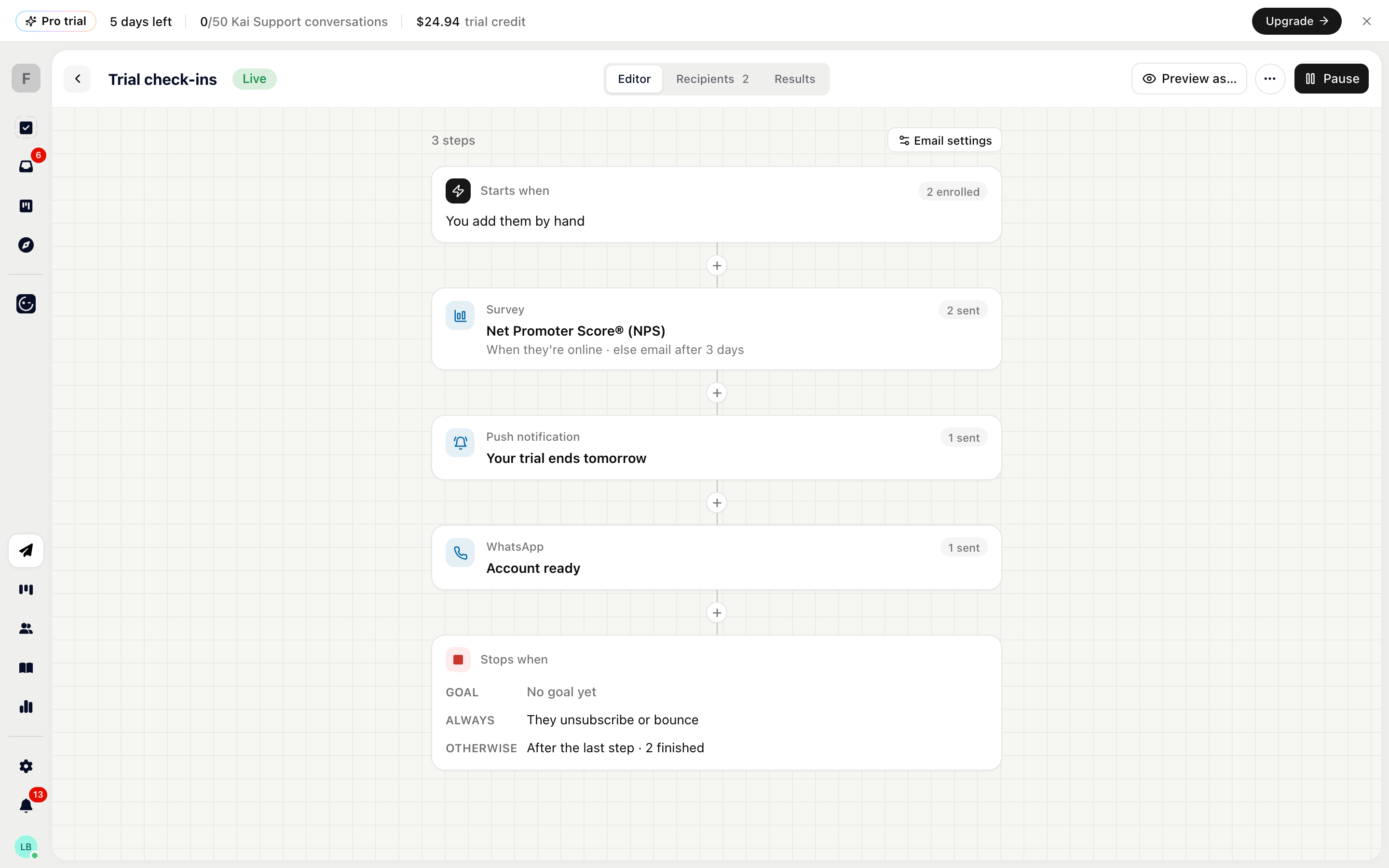
Survey, push notification and WhatsApp steps send something you already made in Outreach: pick it in the step. A draft survey works, and only the people this step sends it to see it. The survey's own audience and schedule don't apply. Push notifications only reach people who use your mobile app with push set up, and WhatsApp messages need an approved template. Contacts without the app or without a phone number skip the step.
An email step can be written by you, or by Kai for each person. Kai writes every contact their own subject and message when the step is due, based on what they did in your product, their company and their conversations. Click Write a sample to see what Kai would send to a real contact. The email you write yourself is the fallback for people Kai knows nothing specific about. Kai-written emails are billed as AI usage. Follow-up emails reply in the thread of the first one, so the contact sees one conversation.
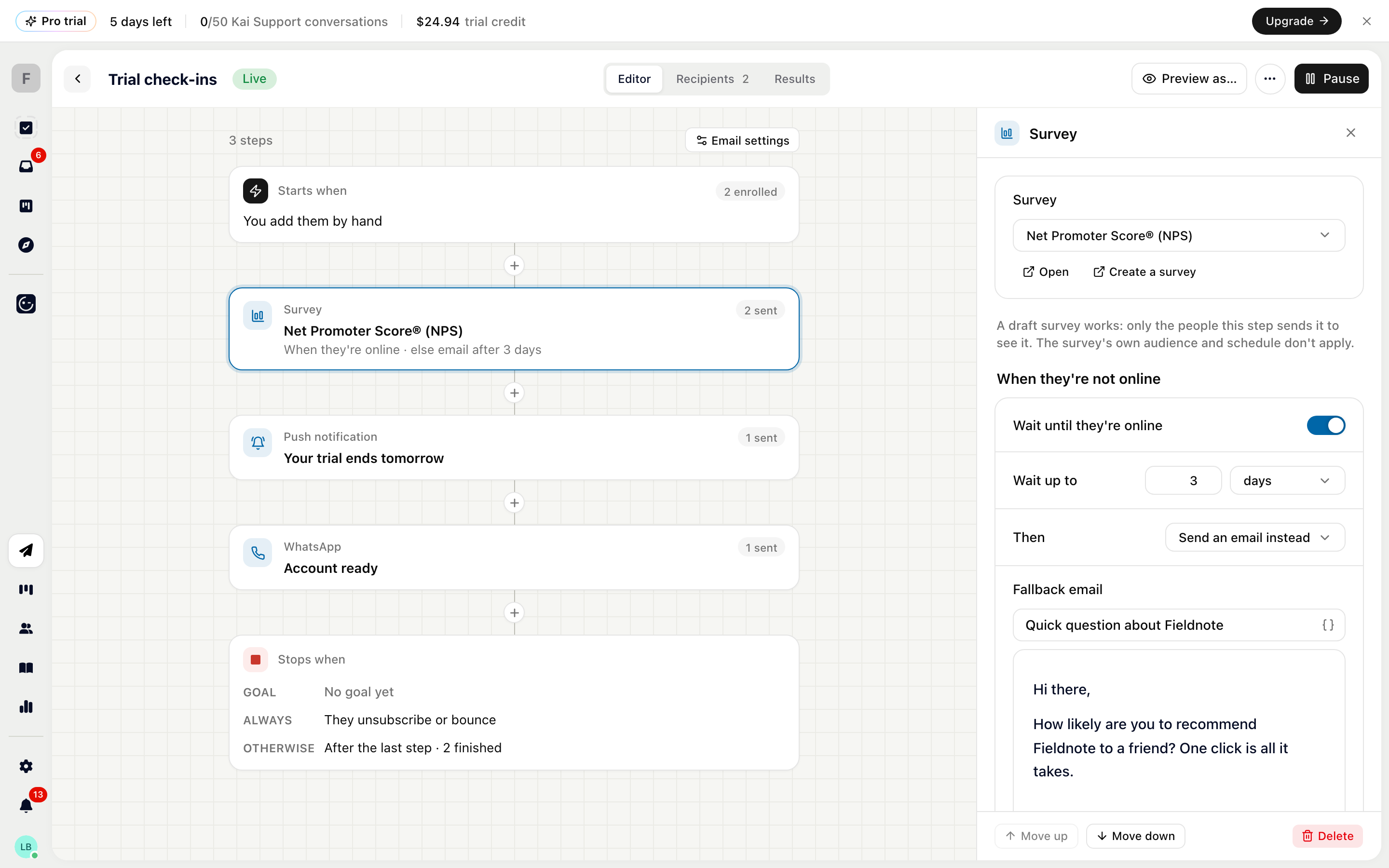
Chat messages and surveys show up inside your app. Without a setting they are shown the next time the contact opens it. Under When they're not online, switch on Wait until they're online to show the step as soon as they're active, and choose what happens if they don't come by within the time you set under Wait up to: Send an email instead, with its own subject and text, or Skip this step.
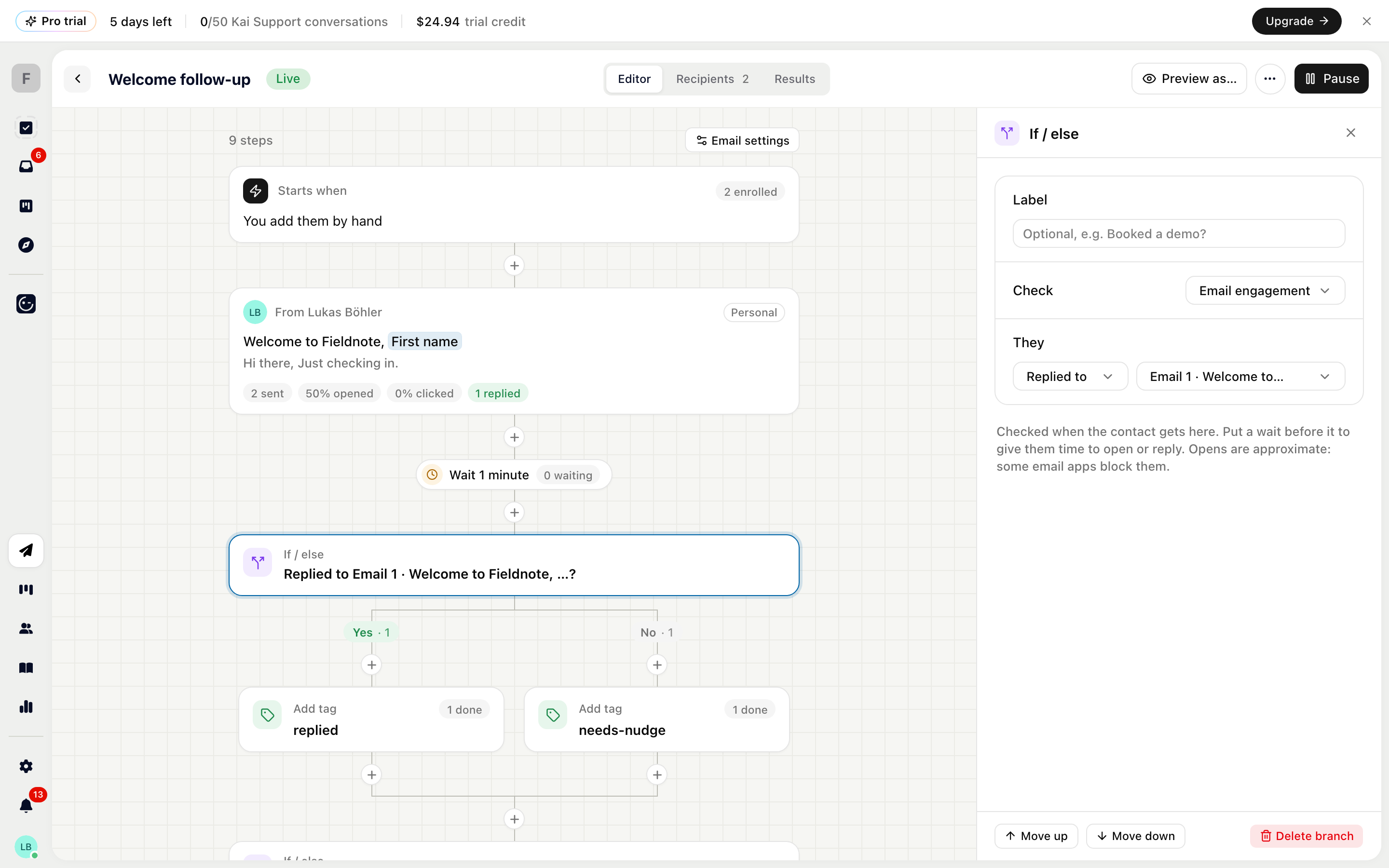
An If / else step can check the contact's data, like their plan or a tag, or how they engaged with your emails. Set Check to Email engagement and choose whether they Opened, Clicked a link in or Replied to one email, or any email of the sequence so far. Put a Wait before the check to give people time to open or reply.

When someone replies, the reply lands in your inbox as a conversation with the teammate set under Replies go to, and the sequence carries on with the next steps. Replies still count in Results, and an engagement check can send people who replied down a different path.
To stop the sequence when someone replies, click the When it stops card at the end and switch on They reply under Also stop when. The Win back template has it on; Onboarding, Trial conversion and Start from scratch leave it off. Sequences you created earlier keep their setting.
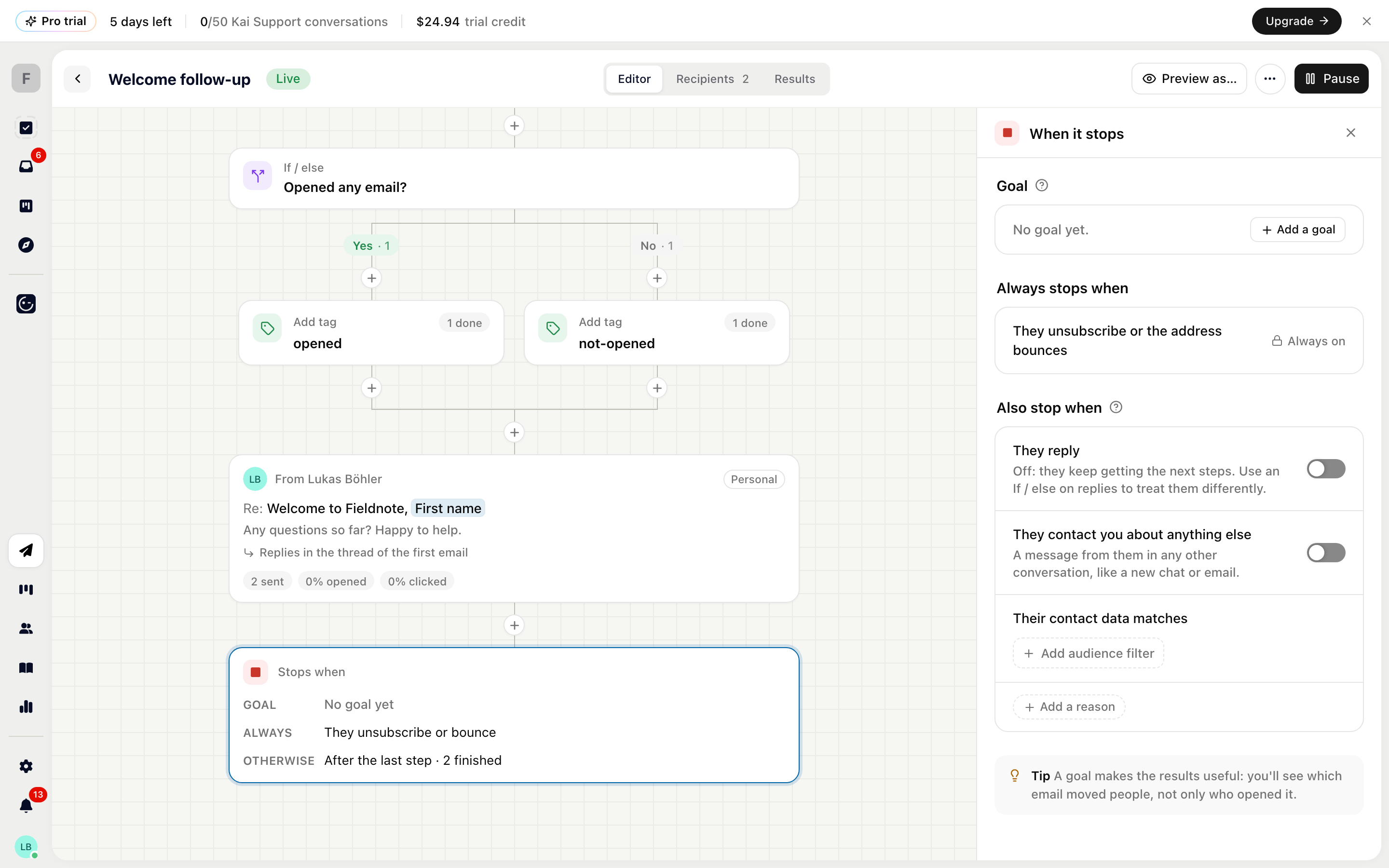
Under Also stop when you can also stop it when They contact you about anything else, when they do something (Add a reason) or when Their contact data matches a filter. A sequence always stops when someone unsubscribes or their address bounces, and an out-of-office reply pauses it until they're back. Add a Goal, like subscribed within 14 days, to count conversions and stop the sequence for people who reach it.
In Email settings you choose Who sends, Replies go to (the sender, a teammate, a team or nobody), the Email type (Conversational for one-to-one emails, Marketing with an unsubscribe link) and the Default look. Under When it sends, Only send in business hours holds messages until your sending hours in your time zone.
Besides the triggers, you can add people on the Recipients tab: Enroll contacts picks contacts by name or email, and Enroll a segment adds up to 10,000 contacts that match a filter. Workflows and pipelines can enroll contacts too, with the Enroll in sequence step and the pipeline bulk bar.
Changes to a live sequence are saved as unpublished changes, and contacts keep getting the published version. Click Publish when you're ready, or Discard to go back.
Results shows how many people were enrolled, replied, reached the goal and finished, with a flow chart of where people went and the numbers for each email. Recipients lists everyone in the sequence; click a contact to see their timeline, step by step.

