The MCP server lets an AI assistant work with your Gleap workspace directly. Ask "what came in this week about billing?", "draft a reply to ticket 4821" or "write a help center article about the new export", and the assistant reads and writes through Gleap's own tools instead of you copying things between tabs.
It works with any client that supports remote MCP servers, such as Claude, Claude Code, ChatGPT, Codex, Cursor, VS Code and Gemini CLI. The MCP server needs the Team plan or higher. Every member of a project can connect it, and the assistant acts with that member's own role.
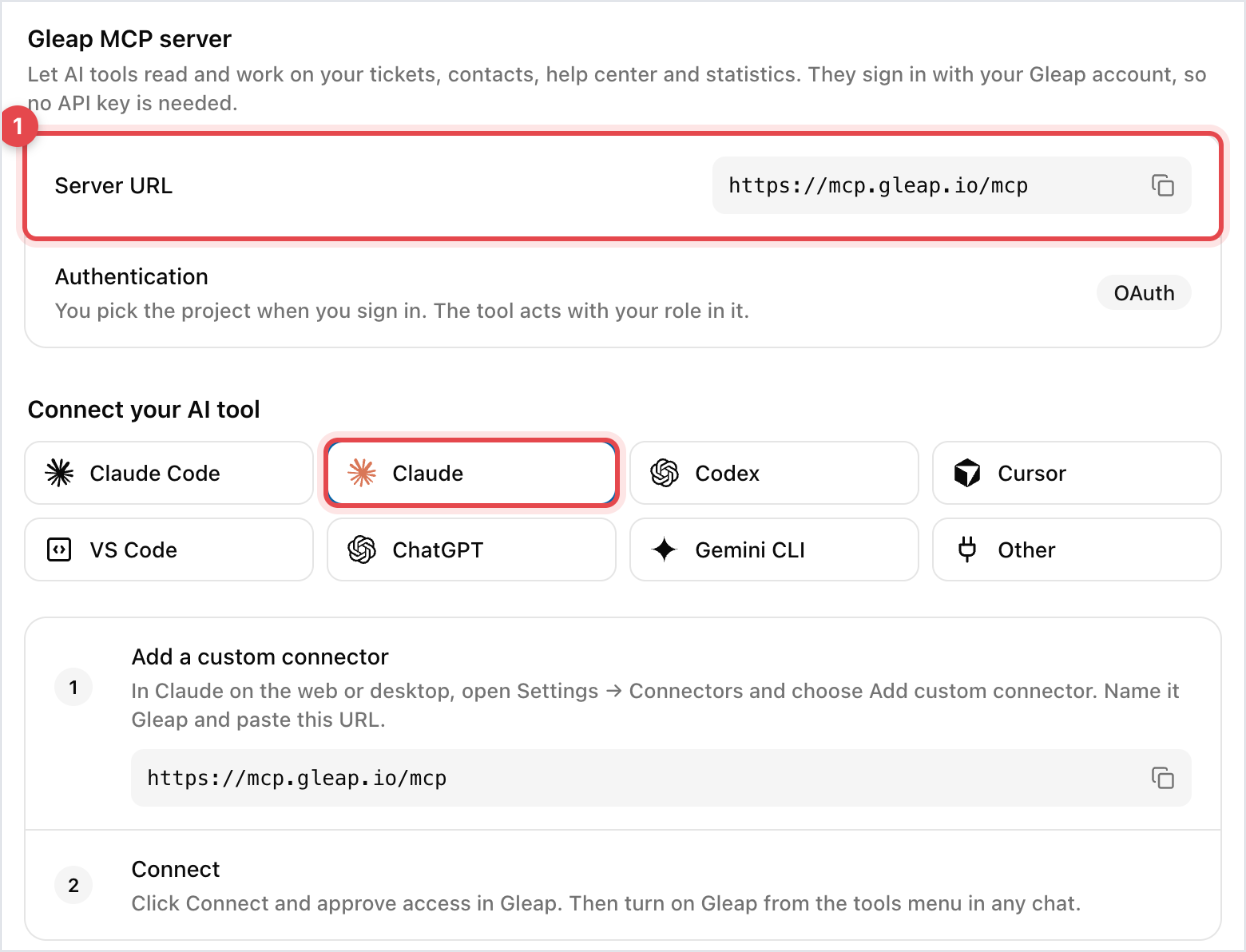
In Gleap, go to Settings → Developer → MCP server and copy the Server URL. It matches your project's region.
In Claude on the web or desktop, open Settings → Connectors and choose Add custom connector.
Name it Gleap and paste the URL.
Click Connect. You're sent to Gleap to approve access and pick the project the assistant may use.
Turn on Gleap from the tools menu in any chat.
That's the whole setup, with no keys to copy. The MCP server page has the same steps under Connect your AI tool: the Claude tab shows them as Add a custom connector and Connect, and the other tabs cover Claude Code, Codex, Cursor, ChatGPT and other clients. There are also a few prompts to try.
The server URL by region:
https://mcp.gleap.io/mcpThat's for EU projects. US projects use:
https://mcp.us.gleap.ai/mcpFor clients that don't sign in with OAuth but let you set headers, send:
x-gleap-api-key: your API key.
x-gleap-project-id: the project ID.
Project admins create the key under Settings → Developer → API keys, and the Project ID is on the same page. A connection made this way acts as that key's service account, not as you.
The tools cover most of what you'd do in the dashboard.
Tickets: search and filter, read one with its full conversation, create, update, assign, tag, snooze, close, reopen, archive, link and merge, and read the activity log.
Messages: read a thread, send a reply or an internal note, or put a draft reply in the agent's composer.
Contacts and companies: search, read, create and update contacts, list someone's tickets, and read and update companies.
Help center: read collections and articles, and create or update them.
Knowledge: search your knowledge base, and find tickets similar to a given one.
Statistics: headline facts, lists, bar charts and raw data.
Surveys, news, outbound messages and emails: create, edit, target and publish them, and read survey results.
Feature requests, pipelines, teams and workflows: search and create feature requests, work with pipeline entries, read teams and users, and run a workflow on a ticket.
The set grows as the product does, so what your client lists is the current truth.
Questions that would otherwise be a report: what's been coming in, which topics repeat, what changed since last month. And bulk work, like turning a recurring question into a help center article, or finding every ticket that mentions a feature before a release.
For developers, it puts support context where the code is: reading the ticket that describes a bug without leaving the editor.

With OAuth, the connection is scoped to the project you picked when approving access and acts with your own role there, so an assistant can't do anything you couldn't. With API key headers, it acts as the key's service account instead.
MCP is for people working with an assistant: ad hoc, conversational, different every time. The REST API is for your own code, such as imports, scheduled jobs and anything that should run identically every time. If you're writing a script, use the API.

