Forms are the classic way to collect structured feedback in the messenger. A form asks a few questions, can attach a screenshot or a screen recording, and creates a ticket of the feedback type you choose, such as a bug report or a feature request. Project admins can create new forms. Bug report forms work on every plan from Starter. Feature request forms need Team, because they feed your roadmap.
Open AI & Automation → Agents and pick Forms at the bottom of the side menu. If your role can't open the AI area, Forms sits directly in the AI & Automation menu.
Every project starts with two built-in forms, Report an issue and Request a feature. The list shows each form's name, its Feedback type and its Form key. You can edit the built-in forms, but not delete them. If your plan doesn't include a form's type, the list shows an upgrade badge next to it. The form stays saved, but the messenger won't open it until you upgrade.
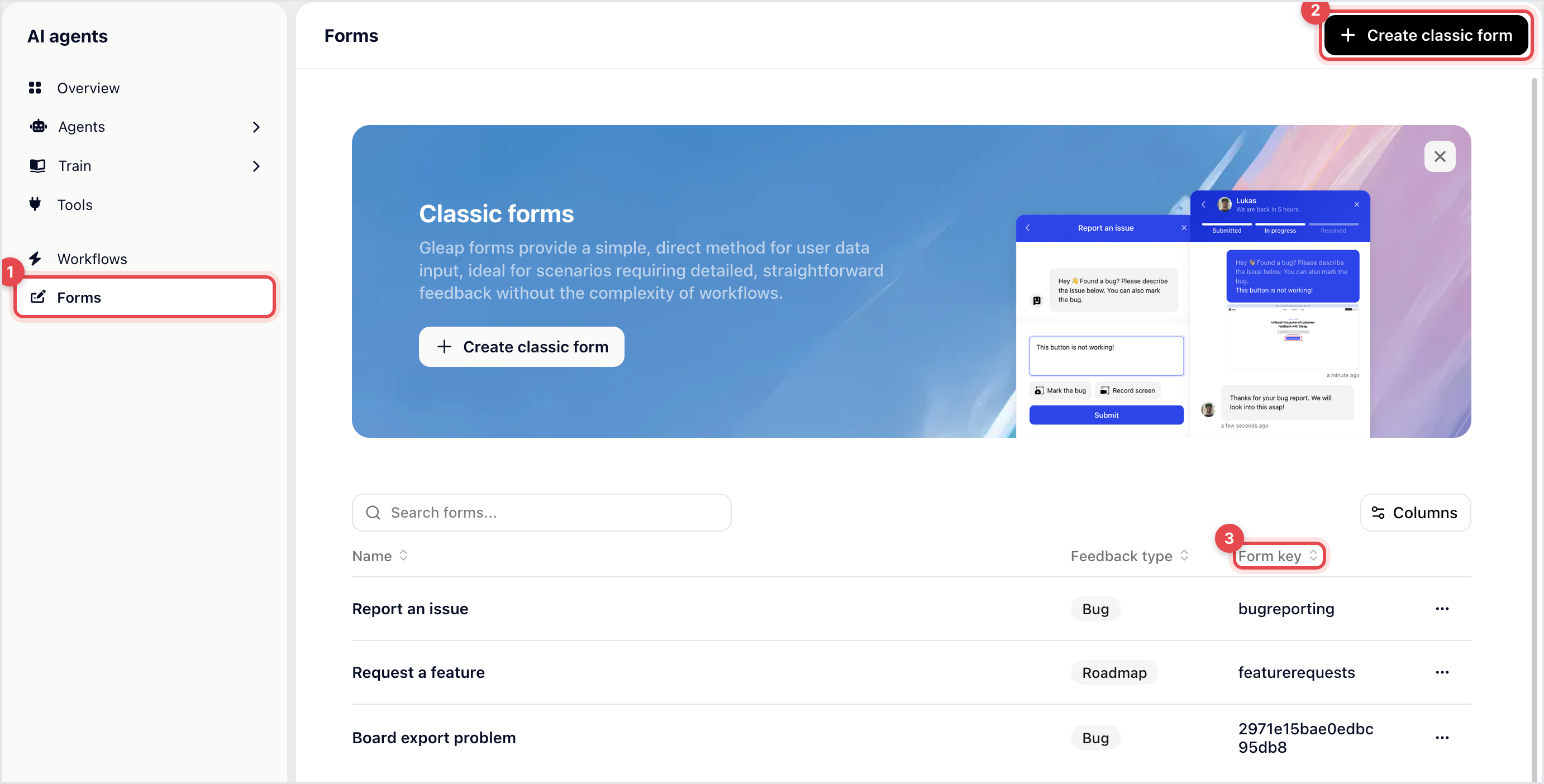
Developers can open a form from code with Gleap.startFeedbackFlow. The built-in forms use the keys bugreporting and featurerequests.
Go to AI & Automation → Agents → Forms and click Create classic form.
A new form called Custom feedback form opens with one question. Click the title at the top to rename it.
On Questions, click Add question and pick a type. Above the preview, choose Chat style or Form style for how the questions appear.
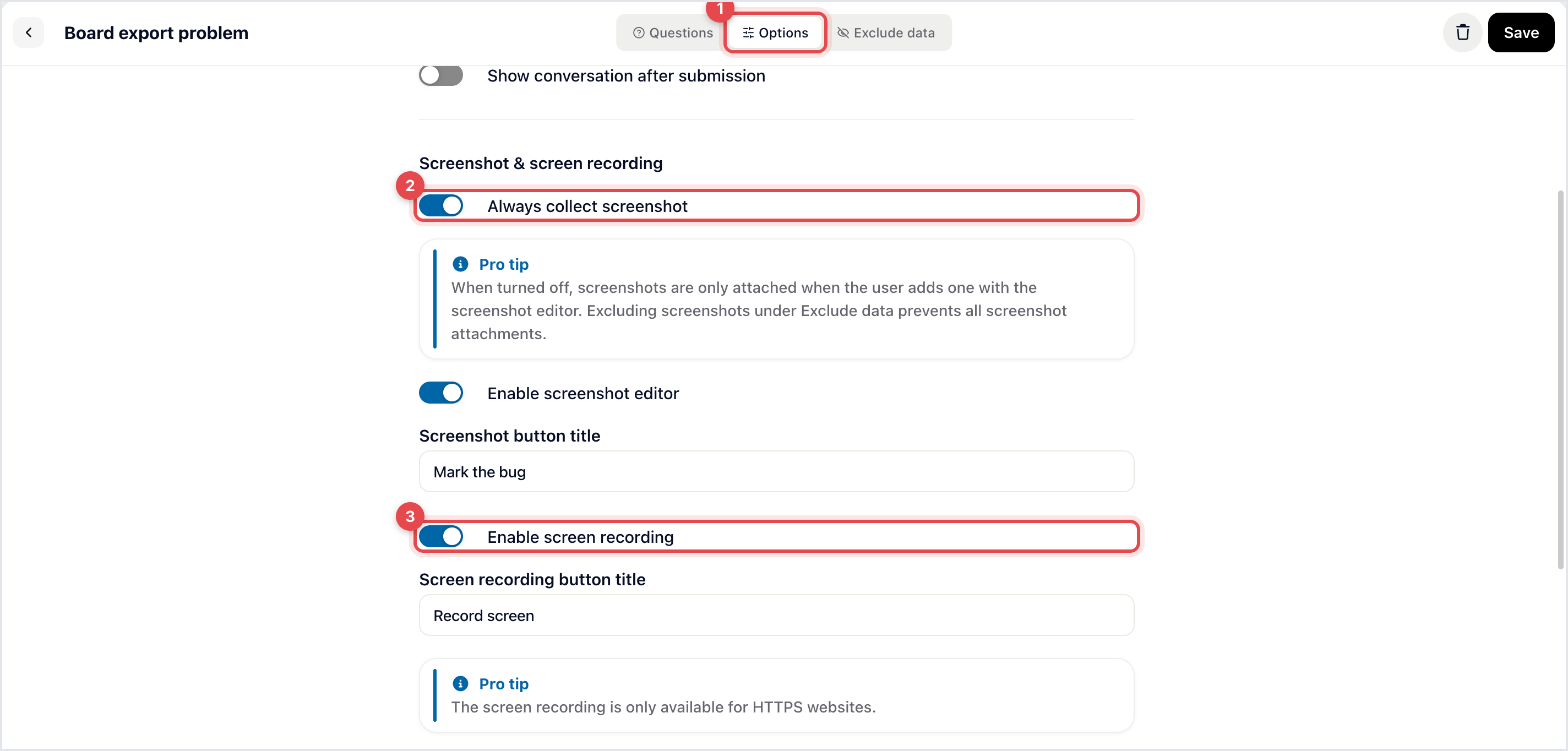
On Options, choose the Feedback type, then set the capture and behaviour switches described below.
On Exclude data, switch on anything this form shouldn't send.
Click Save.
You're taken back to the forms list, where the new form now appears. To show it to customers, link it to a menu item on the messenger home screen (see the last section).
Short text and Long text: free text. Long text suits a "what happened?" question.
Single choice and Multiple choice: customers pick one option or several.
Priority selection: one choice per priority of the board the form files tickets on, so customers can say how urgent it is.
Numeric scale, Net Promoter Score and Smiley rating: quick ratings.
File upload: customers attach a file. You can restrict the file types.
Welcome message: a short intro shown before the first question.
Tick Required field on a question to make it mandatory. The email field, the privacy policy checkbox and the screenshot buttons aren't questions: the switches on Options add them for you.
These switches sit under Screenshot & screen recording on the Options tab.
Always collect screenshot: attaches a screenshot of the screen to every report. When it's off, a screenshot is only attached if the customer adds one with the screenshot editor.
Enable screenshot editor: adds a button, "Mark the bug" unless you change it in Screenshot button title. Customers can mark up the screen before they send it. On websites they can draw boxes or freehand, blur private details, change the colour and undo.
Enable screen recording: adds a "Record screen" button, which you can rename in Screen recording button title. Customers can record up to two minutes of their screen.

Show conversation after submission: opens the conversation once the form is sent, so the customer can read your reply and add details.
Collect email addresses of users: adds a required email field at the end. If the contact is already identified with a valid email address, the field is filled in and hidden. It's on by default.
Show all questions on one page and Show a progress bar on multiple questions: available for forms in Form style.
Enable privacy policy check: adds a checkbox customers must tick, linked to your Privacy policy URL.
Exclude data strips data from this form's reports: Custom data, Env data, Console log, Network logs, Custom event log, Screenshot, Replays and Attachments. The built-in Request a feature form, for example, leaves out the logs, the screenshot and replays.
Customers reach forms through the menu items on the messenger home screen. In new projects, Report an issue and Request a feature are set to Pass to agent: they start a conversation with Kai. Kai takes the bug report with its own tools and asks for a screenshot or recording when it helps. For a feature request, it first looks for an existing request and suggests upvoting it. If your plan doesn't include bug reporting or the roadmap, that item opens the classic form instead.
To go back to the classic form:
Go to Settings → Widget → Home.
Click Report an issue (or Request a feature) in the list.
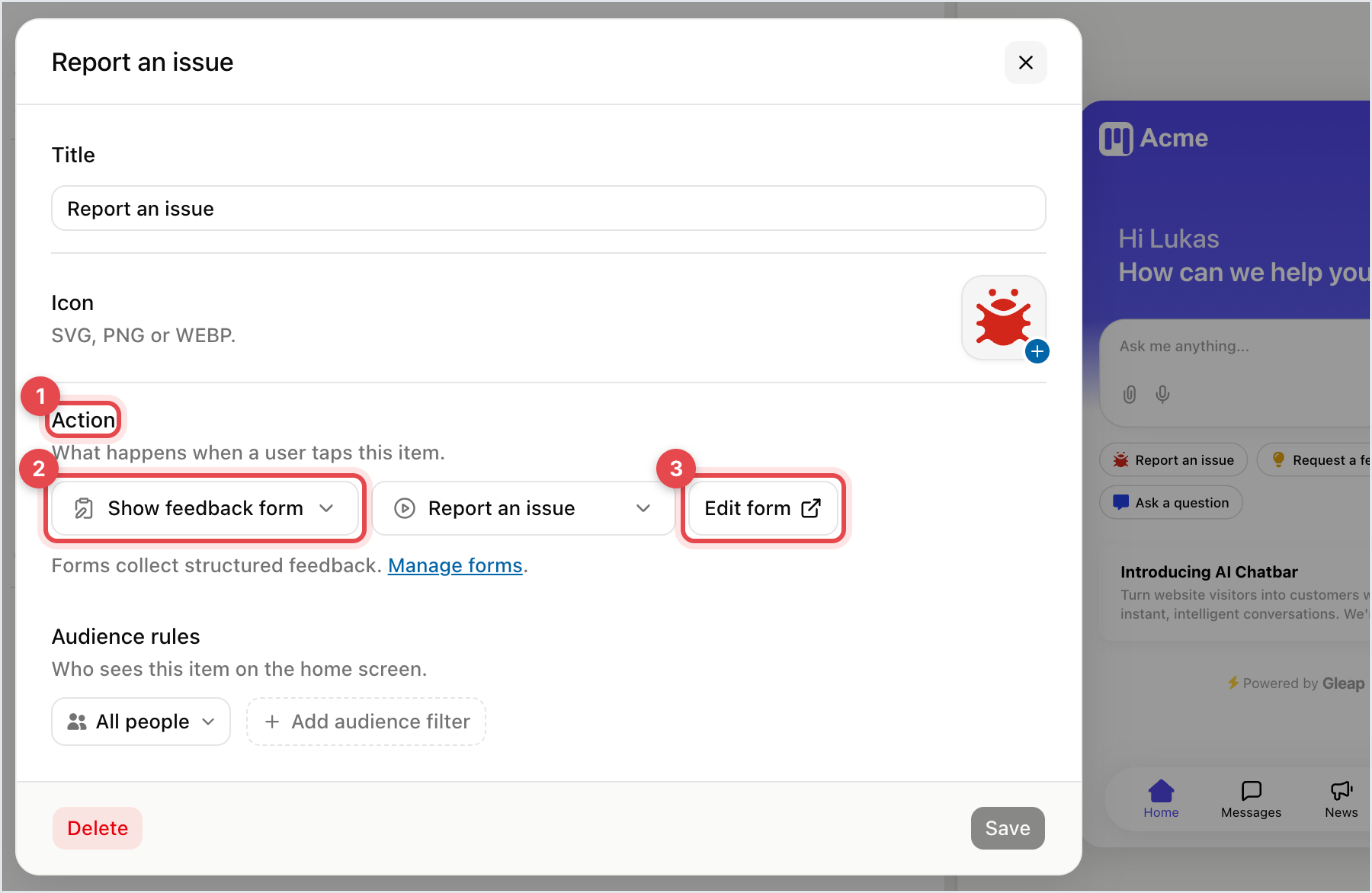
Under Action, pick Show feedback form, then pick the form in the menu next to it.
Click Save.
The menu item now opens the form. The Edit form button next to the menus takes you straight to it.