A Gleap bug report is worth more than an email because of what comes with it: the console output, the recent network requests and, if you turn them on, a replay of what the user was doing. All of it is captured before the report, so it's there whether or not the customer thought to mention it. This page covers the JavaScript SDK. Console and network logs are on every plan; replays need the Team plan or higher.

Gleap.initialize. Called afterwards, they either do nothing or apply too late, which is the usual reason masking "doesn't work".On the web, the SDK keeps a rolling buffer of the last 500 console entries, including uncaught errors, and attaches it to every report. It's always on, so there's nothing to set up.
You can add your own entries, which is more useful than it sounds: a line at each step of a checkout flow tells you exactly how far someone got.
Gleap.log("Checkout: payment step reached");
Gleap.log("Token refresh failed", "ERROR");
If overriding the console clashes with your own logging setup, turn it off with Gleap.disableConsoleLogOverwrite(). Your own Gleap.log calls still work.
The SDK records recent fetch and XMLHttpRequest calls with their URL, method, status and payloads, and keeps the last 30 (up to 70 with Gleap.setMaxNetworkRequests). Requests to Gleap itself are excluded. Since SDK 19.0.0, Authorization, Proxy-Authorization, Cookie and Set-Cookie header values are always replaced with [REDACTED]. Everything else your API sends, such as tokens and personal data, is visible to whoever reads the ticket unless you strip it.
To strip it from the dashboard:
Go to Settings → Developer → Developer options.
Under Network logs, add the fields to remove to Ignored keys, such as token or password. They're removed from headers, JSON bodies at any depth, form bodies and URL parameters before a report leaves the device.
Add the domains you don't want recorded at all to Excluded domains.
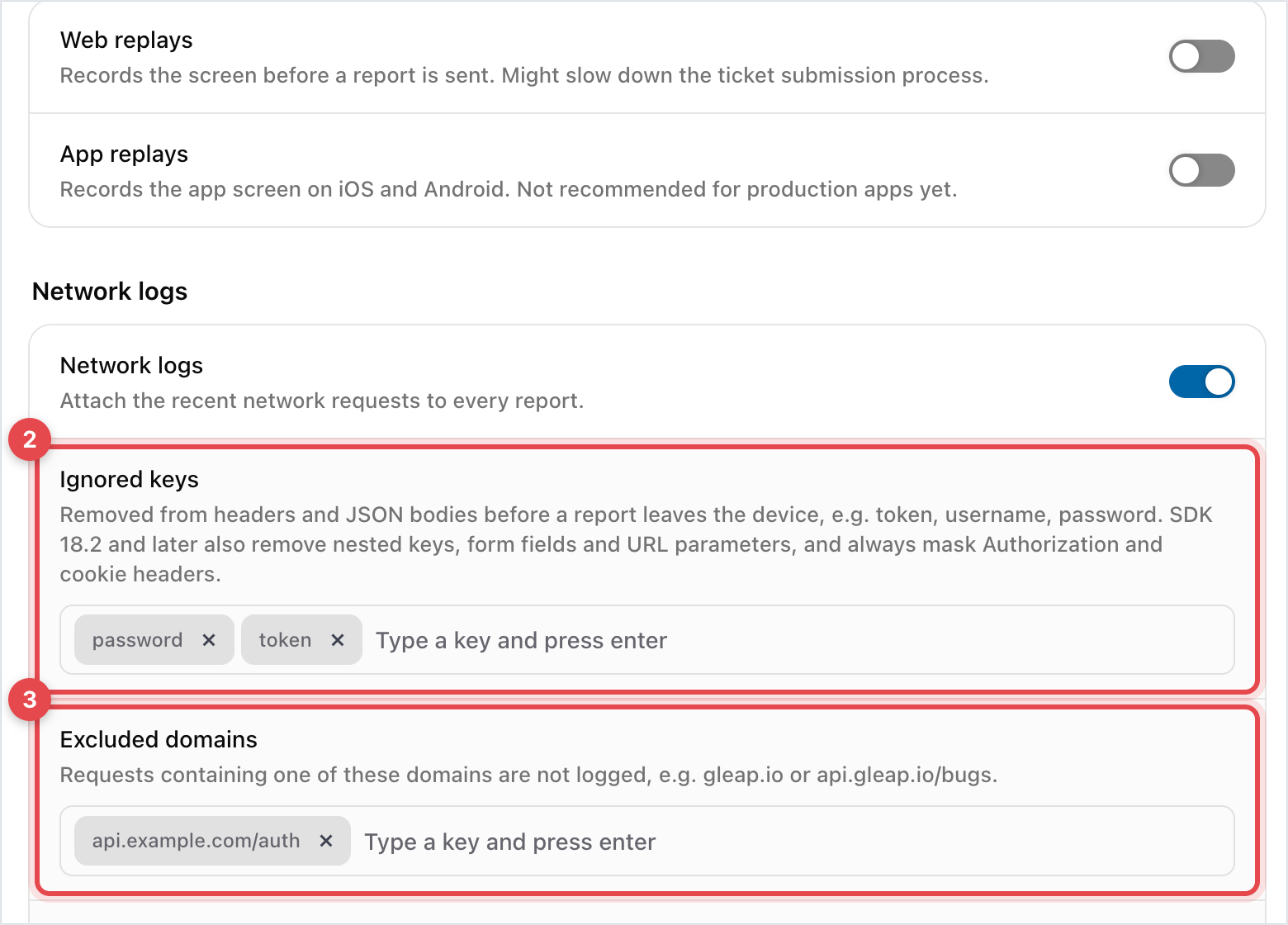
The same two lists exist in code, and the dashboard lists and the ones you set in code both apply:
// Don't record these endpoints at all
Gleap.setNetworkLogsBlacklist(["/auth", "/payments"]);

// Record the request, but strip these fields
Gleap.setNetworkLogPropsToIgnore(["password", "token", "ssn"]);
Exclude an endpoint when nothing about it is safe to keep; strip fields when the request is useful for debugging but a few values aren't. In mobile apps, network logging needs setup per platform: see the Network logs page for your SDK in the developer docs.
Go to Settings → Developer → Developer options.
Under Replays, turn on Web replays for websites, or App replays for iOS and Android apps.
Reload your app.
Web replays record the page itself, not a video: it's rebuilt on playback. The SDK keeps roughly the last ten to fifteen minutes (less on very busy pages), so a report carries the run-up to the problem rather than the whole session. App replays take a screenshot every five seconds (every second with High quality mode) and keep the most recent ones, a short flip-book of the screens leading up to the report.
Password fields are always masked, and so are fields marked as one-time codes, card numbers or card security codes. Other input values are kept, because seeing what someone typed is usually what makes a bug solvable.
If your app handles personal or regulated data, mask every input:
Gleap.setReplayOptions({ maskAllInputs: true });
Gleap.initialize("YOUR_API_KEY");
Or mark single elements in your markup:
<input name="iban" class="rr-mask" />

<div class="invoice-total rr-block">
  € 12,480.00
</div>
rr-mask (or gl-mask): text and field values are replaced with asterisks.
rr-block: the element is replaced with an empty placeholder of the same size.
rr-ignore: what's typed into the field isn't recorded. The field itself still shows.
gleap-ignore="value" on a field: its value is masked.
For screenshots and screen recordings, Masked elements under Screenshots & recordings in Developer options takes CSS selectors, such as .card-number or #account-id, that are hidden on top of password and card fields.
The practical approach: mark the few screens that show real customer data, such as billing and personal details, rather than masking everything and losing the value of replays. In iOS and Android apps, anything visible on screen can appear in a replay. Views you pass to maskView are blacked out in screenshots and screen recordings.
Gleap.setEnvironment("staging"); // "dev" | "staging" | "prod"
Gleap.initialize("YOUR_API_KEY");
The default is prod, so without this every report from every branch looks like it came from production. The environment travels with the report and shows in the ticket's data, which is what lets an agent tell a real customer problem from a colleague testing on staging. For complete separation, use a separate Gleap project for staging, with its own key and its own inbox.
The web SDK keeps its session in a cookie on your root domain, so one session covers all your subdomains. To keep it out of cookies, turn that off before initialize:
Gleap.setUseCookies(false);
Gleap.initialize("YOUR_API_KEY");
Without the cookie, each subdomain has its own session, so you identify your users on each of them.
Gleap.setDisablePageTracking(true);Gleap records page views by default. Switch it off where the URLs themselves are sensitive, such as paths that carry record ids or customer names.
If your site's CSP uses nonces and the SDK's own script tag carries the nonce, the SDK picks it up by itself. Otherwise, hand it over:
Gleap.setCSPNonce("YOUR_NONCE");The Content Security Policy page in the developer docs lists the exact directives to allow.
For errors you catch yourself, Gleap.sendSilentCrashReport files a crash report without showing the customer anything. It carries the console logs and network requests, but by default leaves out the screenshot, the replay and attachments. It's the right call for exceptions your users can't act on and shouldn't be interrupted by.

