When your product breaks, your inbox fills with the same message. Connecting Better Stack means customers can see the outage in the messenger before they write in, and Kai, which answers them, knows about it. Only project admins can connect it, and it needs the Team plan or higher.
In Better Stack, create an API token under Uptime › API tokens.
In Gleap, go to Settings → Connectors, pick Integrations and click Add integration.
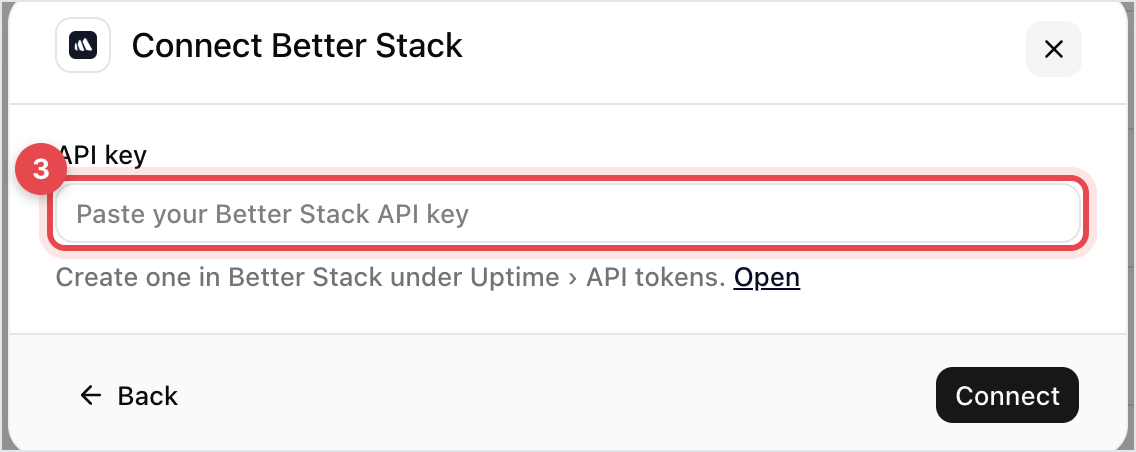
Pick Better Stack. Under What should Better Stack do?, keep Status page ticked and click Continue with Better Stack. Paste the token into API key and click Connect.
Under Which status page should the widget show?, pick the page your customers would look at, not an internal one. The list appears once the key is accepted.
Click Done.
If Better Stack returns no status page for the key, Gleap doesn't connect and tells you to check the key or create a status page first.
Go to Settings → Widget → Home.
Click Add widget (on the classic home, Add menu item) and pick System status.
Save your changes.
The card shows the page's overall state, such as "All services are online" or "Service outage detected", with a View status page link. Customers see it as they open the messenger, which is exactly when they were about to ask whether it's just them.
This is the part worth setting up for. Kai gets the status page with every conversation: its overall state, the current status of each service on it (with the last seven days when a service had problems), and any open incidents with their updates.
During an outage, someone asking "why can't I log in?" can be told there's an incident affecting logins, rather than being walked through resetting their password.

The reverse is just as true: an incident left open after it's resolved keeps being mentioned. Closing it in Better Stack is what stops that.
Gleap reads the status page every two minutes rather than watching it live, so there's a short lag between a change on the status page and what customers and Kai see. If it's longer than that, check the API key: when a sync fails, the last known status stays in place. After repeated failures Gleap stops syncing until you save a new key or save the integration again.

