Chargebee works like the other billing integrations: the customer's subscriptions and invoices appear next to the ticket you're answering, and Kai can answer billing questions from the same data. Only project admins can connect it, and it needs the Team plan or higher. Each project takes one Chargebee site.
Go to Settings → Connectors and click Add connector.
Pick Chargebee. Under What should Chargebee do?, keep Inbox panel and Kai answers billing questions ticked and click Continue with Chargebee.
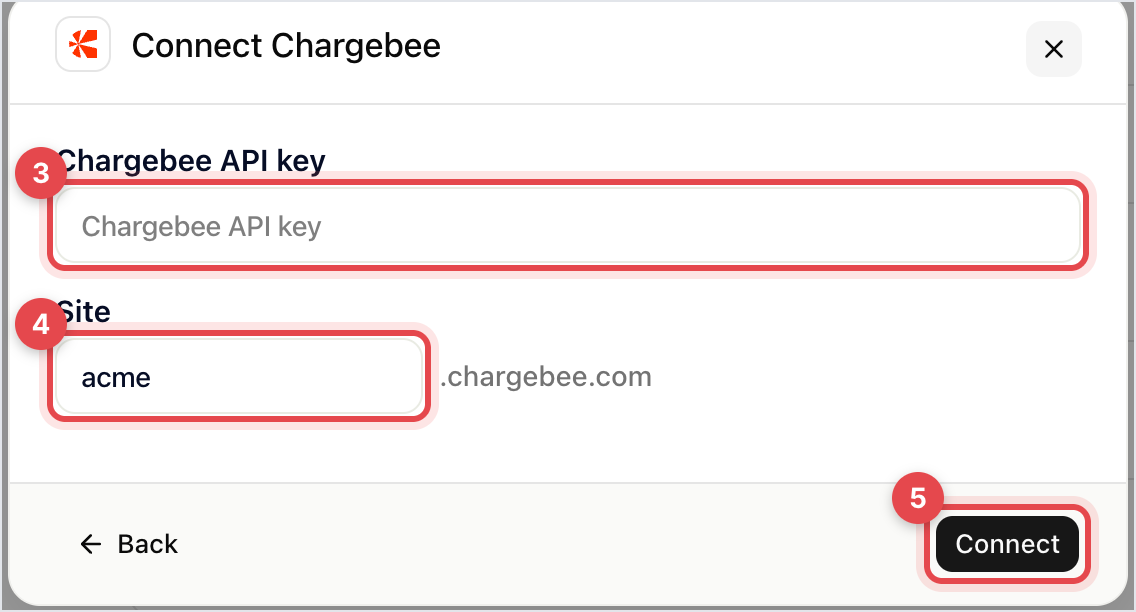
Paste your Chargebee API key.
Enter your Site: the name in your Chargebee address, the acme in acme.chargebee.com.
Click Connect.
Gleap checks the key against that site before saving, so a site that doesn't exist, or a key from another site, is refused with a message. If you run a test site alongside a live one, take the key from the site you named. Once it's connected, click Done.

If the contact carries chargebeeCustomerId as custom data, that customer is used. Otherwise Gleap searches Chargebee for a customer with exactly the contact's email address.
Gleap.identify("user-123", {
  email: "[email protected]",
  customData: { chargebeeCustomerId: "16BdBpSAaFTZ4dc" },
});
There's no domain-level fallback here, so the email has to match. In B2B, where the person writing in often isn't the billing contact, sending the customer id is what makes the card work.
The customer, a failed payment if there is one, their subscriptions and their latest invoices. That's enough to answer "what am I paying for" and "did my last invoice go through" without leaving the ticket. Open in Chargebee jumps to the customer there.
The card also offers the billing actions you allow, such as Portal link, Retry payment or Cancel at period end. Each change goes through a confirm dialog and is logged on the ticket.
Go to Settings → Connectors and open Chargebee.
Under Billing actions, pick a mode for each action: Off, Kai and teammates or Teammates only.
If your Chargebee customer ids are the user ids you pass to Gleap, turn on Customer ids are user ids.
Kai never changes anything on its own: the customer confirms on a card in the chat, or a teammate approves. Refunds can only be run by a teammate, and cancellations start as Teammates only.
Kai shows billing details in the chat only to customers tied to their Chargebee customer by a verified login, which needs identity verification and the switch in step 3. Everyone else gets the billing portal link by email, sent to the billing email on file.
Check that the contact has an email address and that the same address is on a Chargebee customer. If your customers use a different address in your product than in billing, send chargebeeCustomerId.
Data is read from Chargebee when the card loads and kept for up to five minutes per contact; the reload button on the card fetches it again.

