The Stripe integration puts billing context where support happens. A teammate opening a ticket sees what the customer pays for, their invoices and any failed payment, without switching to Stripe. Kai can answer billing questions from the same data and make the changes you allow. Only project admins can connect it, and it needs the Team plan or higher. Each project takes one Stripe account.
Go to Settings → Connectors and click Add connector.
Pick Stripe. Under What should Stripe do?, keep the jobs you want ticked and click Continue with Stripe.
If the dialog offers Connect with Stripe, sign in to Stripe, pick the account and approve Gleap's permissions there. No key is stored that way.
Otherwise, paste a restricted key into Stripe restricted key and click Connect. Under the key field, the switch Match contacts by company domain when no Stripe customer has their exact email. is on by default. More on it below.
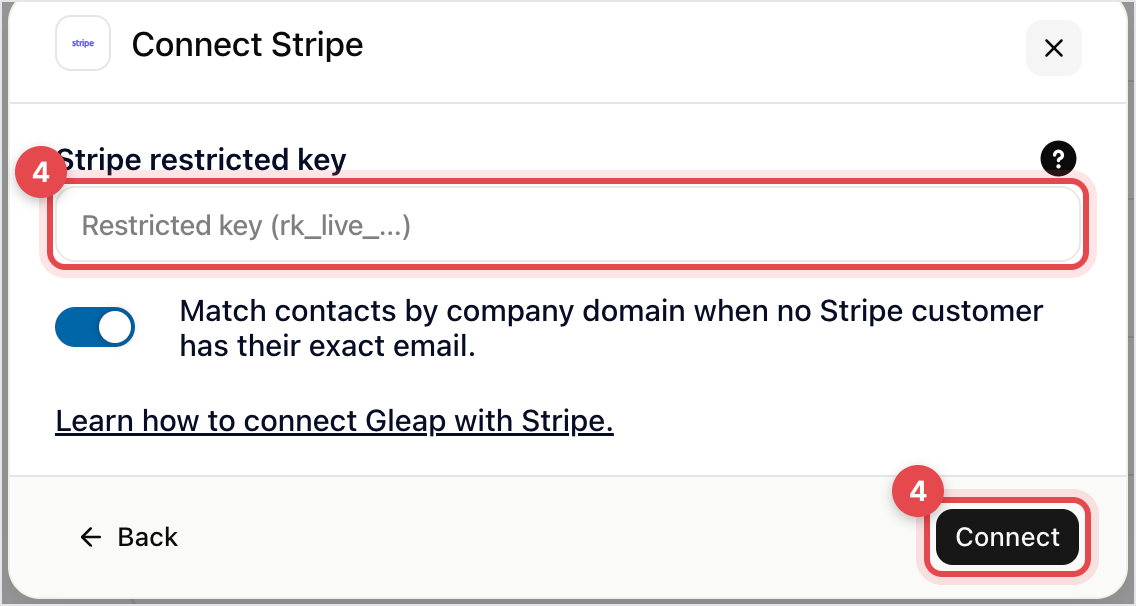
Gleap checks a key with Stripe before saving it. A publishable key, or a key that may not read customers, is refused with a message saying what to fix. Once it's connected, click Done. The Stripe card then shows in the sidebar of every ticket whose contact matches a Stripe customer.

Access | Stripe resources |
|---|---|
Write | Customers, Subscriptions, Invoices, Charges and Refunds, Customer portal |
Read | Payment Intents, Payment Methods, Products, Prices, Coupons |
For the card in the inbox, three steps, in order:
If the contact carries stripeCustomerId as custom data, that customer is used.
Otherwise Gleap searches Stripe for a customer with exactly the same email address.
If that finds nothing and the email is on a company domain, not a free provider like gmail.com, it searches for customers at that domain.
The domain step helps in B2B, where the person writing in is often not the one who pays. It's on by default. To turn it off, switch off Match contacts by company domain when no Stripe customer has their exact email. in the connect dialog or later in the Stripe settings.
Sending the customer id is still the reliable route:
Gleap.identify("user-123", {
  email: "[email protected]",
  customData: { stripeCustomerId: "cus_ABC123" },
});The customer, a failed payment if there is one, their subscriptions with status and renewal date, and their latest invoices. Open in Stripe jumps to the customer in Stripe, and keys from test mode show a Test badge.
The card also offers the billing actions you allow, such as Portal link, Retry payment, Cancel at period end or Refund. Each change goes through a confirm dialog and is logged on the ticket.
Go to Settings → Connectors and open Stripe.
Under Billing actions, pick a mode for each action: Off, Kai and teammates or Teammates only.
Optionally, add a coupon id under Retention discount. It's the only discount Kai may offer, to customers about to cancel.
Kai never changes anything on its own: the customer confirms on a card in the chat, or a teammate approves. Refunds can only be run by a teammate, and cancellations start as Teammates only. On some projects this section shows Set what Kai may do in Skills instead, where the same choices sit next to Kai's other skills.
Kai shows billing details in the chat only to customers tied to their Stripe customer by a verified login. That needs identity verification and the User id in Stripe metadata field, the metadata key on your Stripe customers that holds your user id. Everyone else gets the billing portal link by email, sent to the billing email on file. Kai never uses the company-domain match.
Usually the contact has no email address, or their email in Gleap isn't the one on the Stripe account. A work address in your product and a personal one in billing is enough to break the match. Sending stripeCustomerId removes the guesswork.


