The launcher is the button that opens the messenger. Open Settings → Widget → Look → Launcher. It is a section of Look, replacing the former separate Launcher page.
Choose a Position: a floating launcher, a classic tab or Hidden.
Choose the Icon for a floating button, or set Tab text for a classic tab.
Use Fine-tune position for offsets where available.
Check the preview and wait for the changes to save.
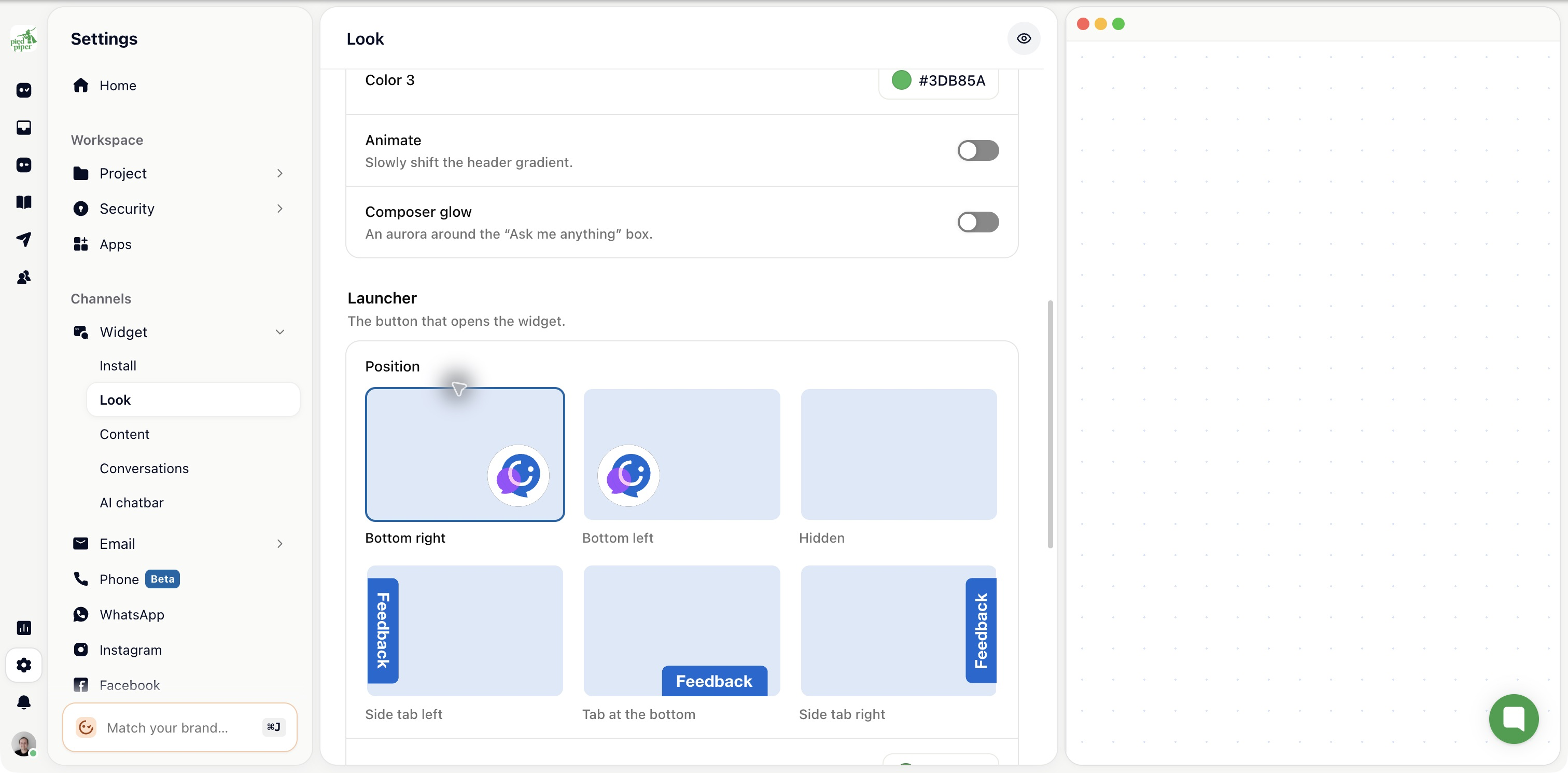
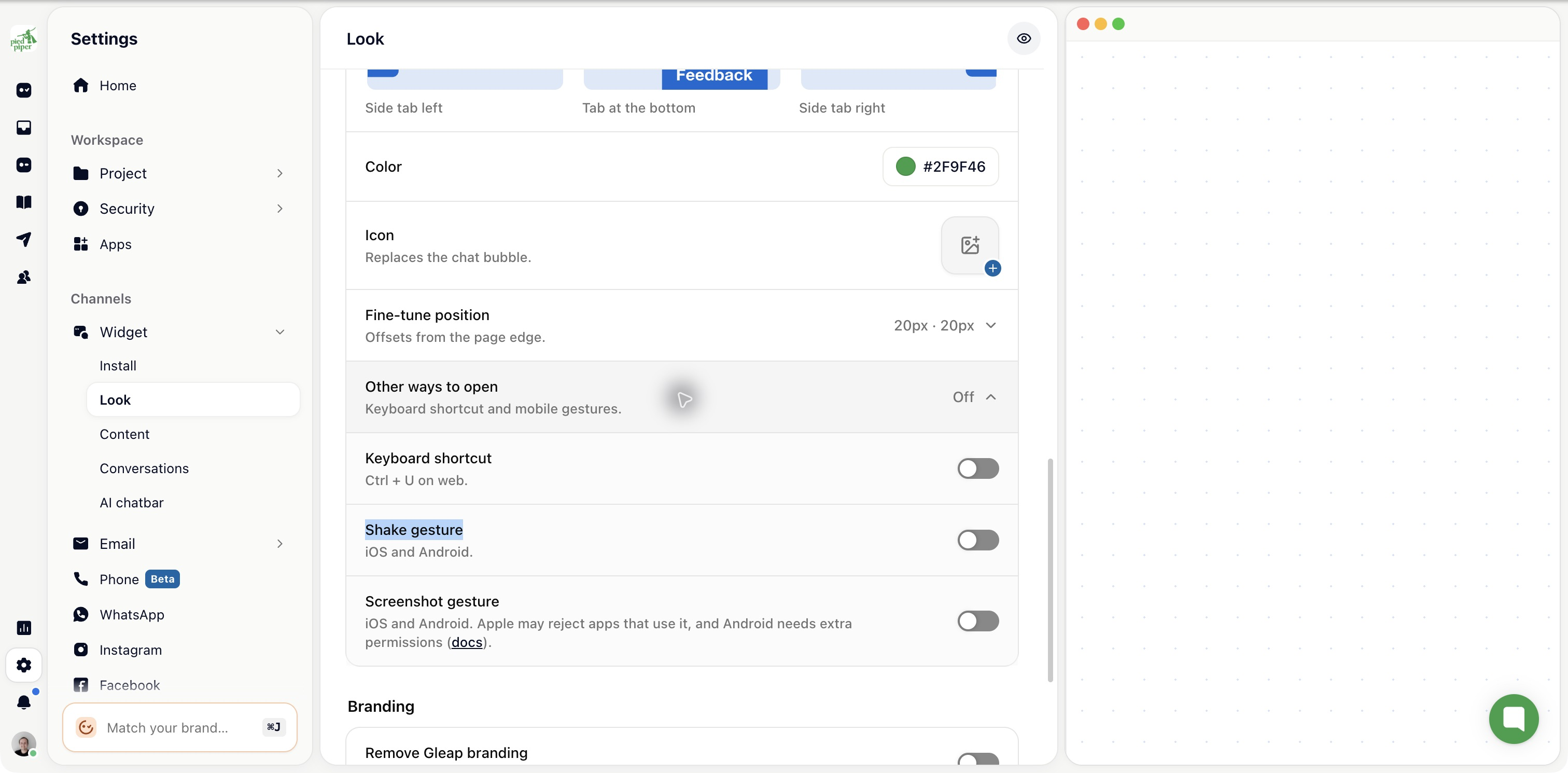
These settings save automatically. Check the result on a phone as well as on a desktop, especially if your site has a bottom navigation or cookie notice.
A floating button can sit on the left or right. Classic tabs can sit on the left, bottom or right. Hidden removes the launcher.
Choose a location that stays clear of your product’s important controls. Keep classic tab text short, such as Help or Support.
With the launcher hidden, give customers another way to open the messenger. In JavaScript:
Gleap.open();Under Launcher → Other ways to open, enable the web keyboard shortcut or mobile Shake gesture and Screenshot gesture as needed. Hiding the launcher does not create another entry point automatically.
For screens where the launcher would be in the way:
Gleap.showFeedbackButton(false);

// Restore it when the customer leaves that screen.
Gleap.showFeedbackButton(true);
Pair the hide and show calls so it does not remain hidden after navigation.

