Open Settings → Widget → Content to choose what customers see on the messenger home. This replaces the former Home settings page.
Under Greeting, edit the welcome message and choose the team members shown where your widget version supports them. Use the live preview to check the space available.
Find Quick actions and choose Add quick action.
Choose the action, title and icon. A Classic home can also show a description.
Configure what happens when it is selected.
Add audience rules if it should appear only to some customers.
Save the dialog.
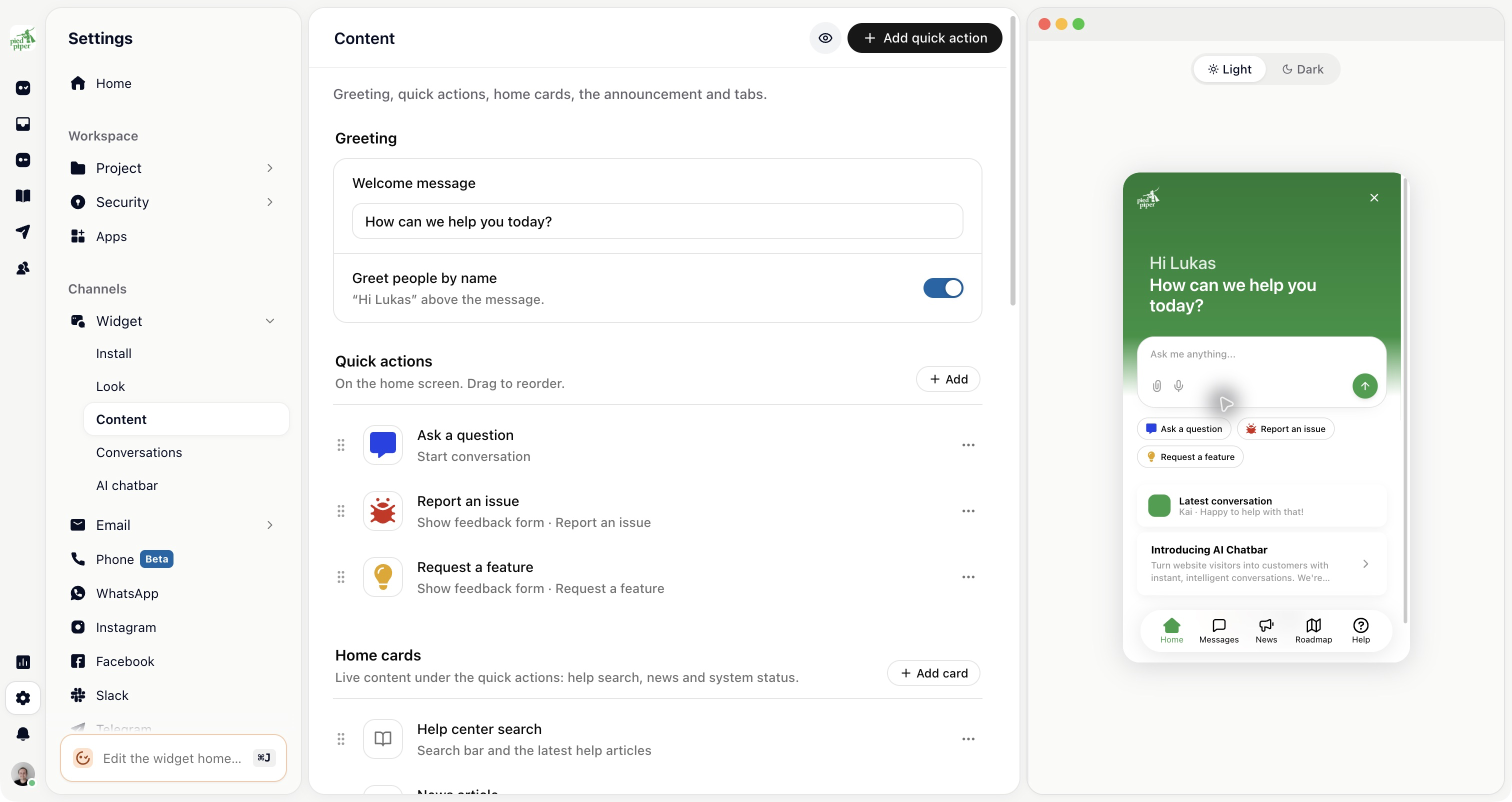
Drag actions to change their order. The Agentic layouts show them as compact starters, so write titles that make sense without a description.
Start conversation runs the chosen live workflow or the matching default workflow.
Pass to agent starts the supported agent conversation with the configured initial context.
Show feedback form opens a selected classic form.
Start custom action sends an action name to your product’s integration.
Open link opens a page, optionally in a new tab.
Workflows and forms are managed under AI agents. Check those entry points after changing an action.
Use the home-card or widget controls for items such as help search, a news item or connected system status. A checklist can appear for the customer when one applies to them.
Keep the most useful path near the top. An empty or outdated card takes attention away from asking a question.
Under Tabs, enable the tabs you want and choose Open on. The latest-conversation card has its own switch. Use the tab’s settings for its label and audience.
Page settings save automatically; dialogs keep their own Save or Create action. The announcement has an explicit publish step.

