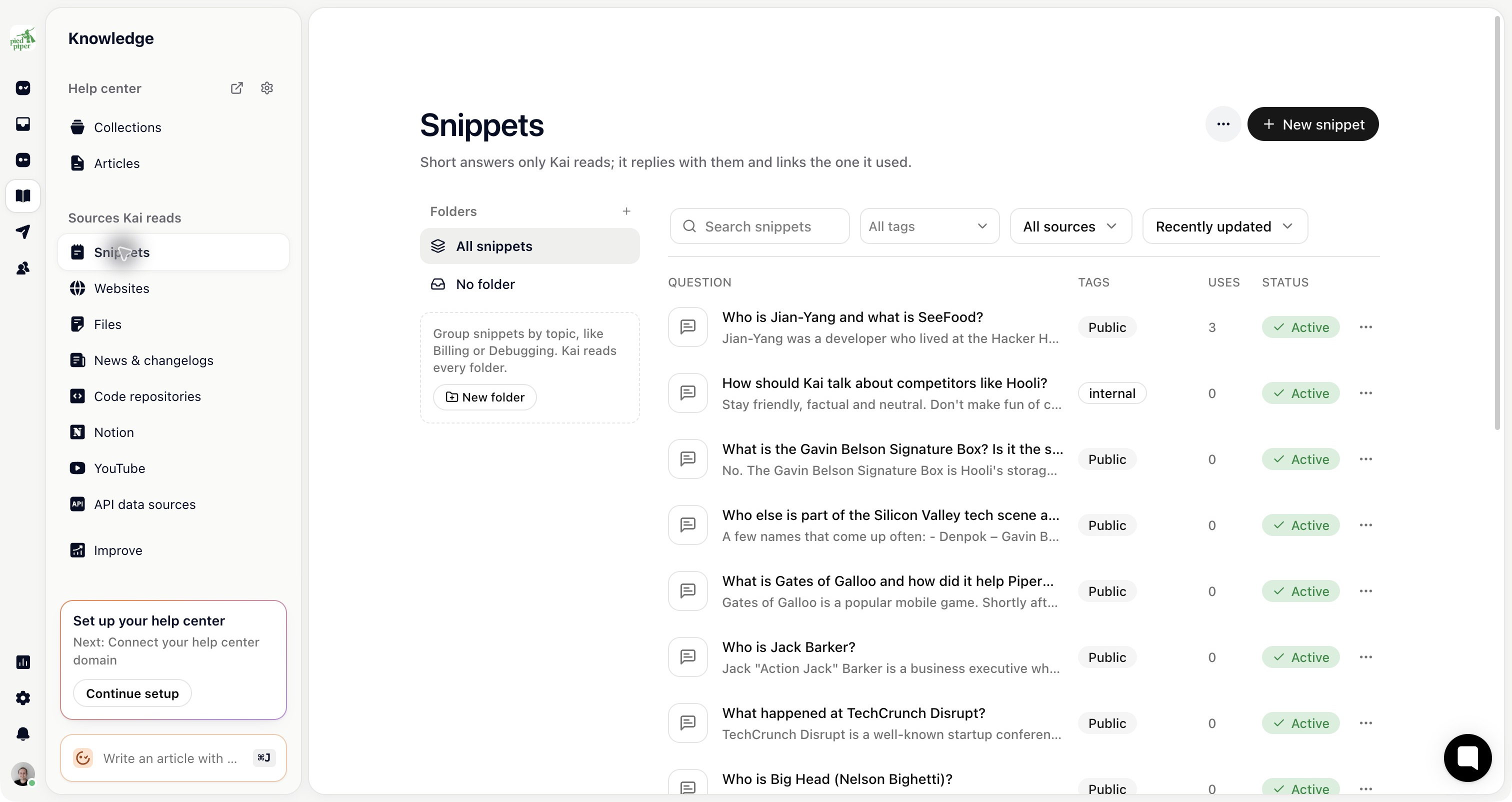
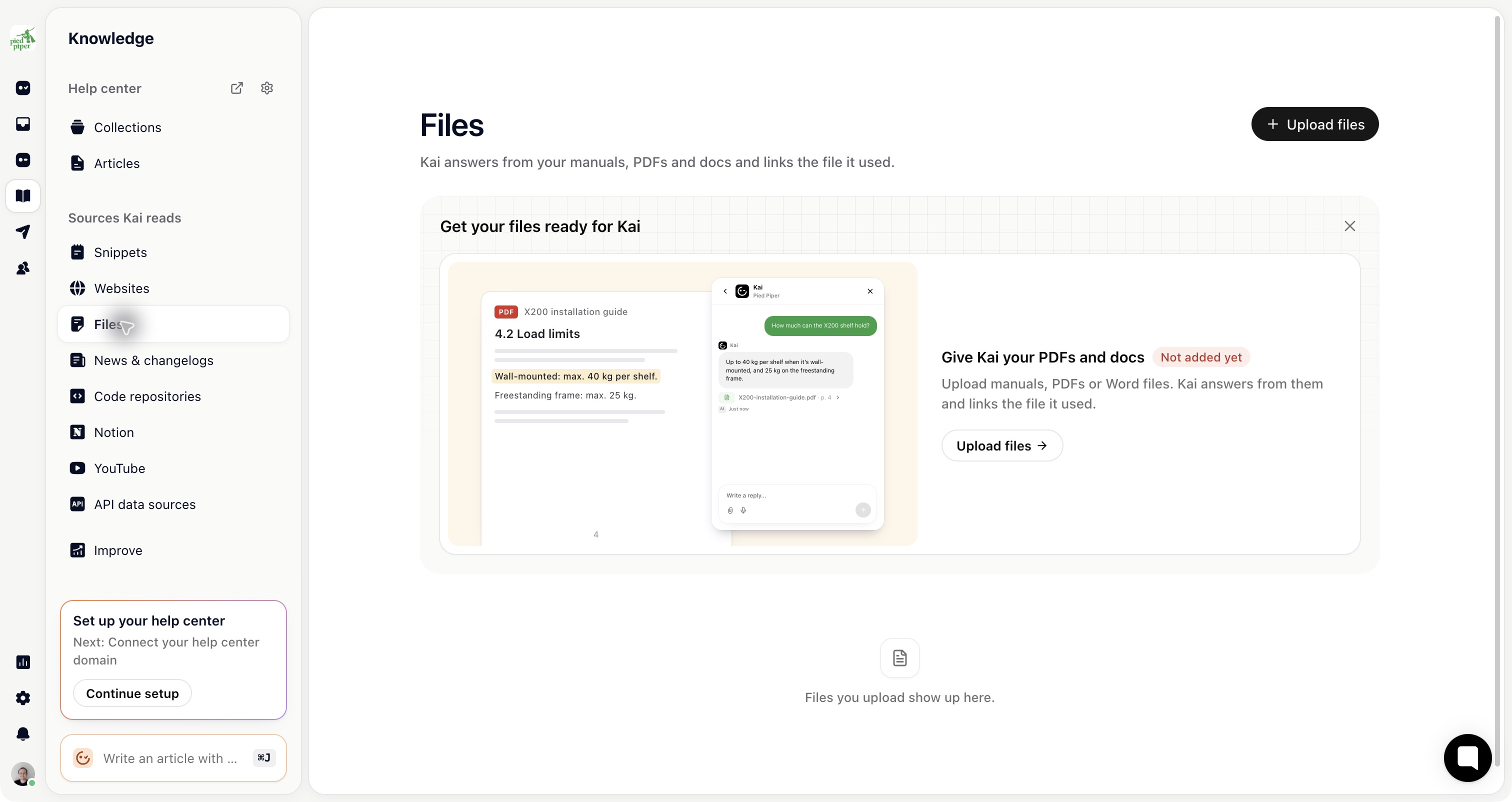
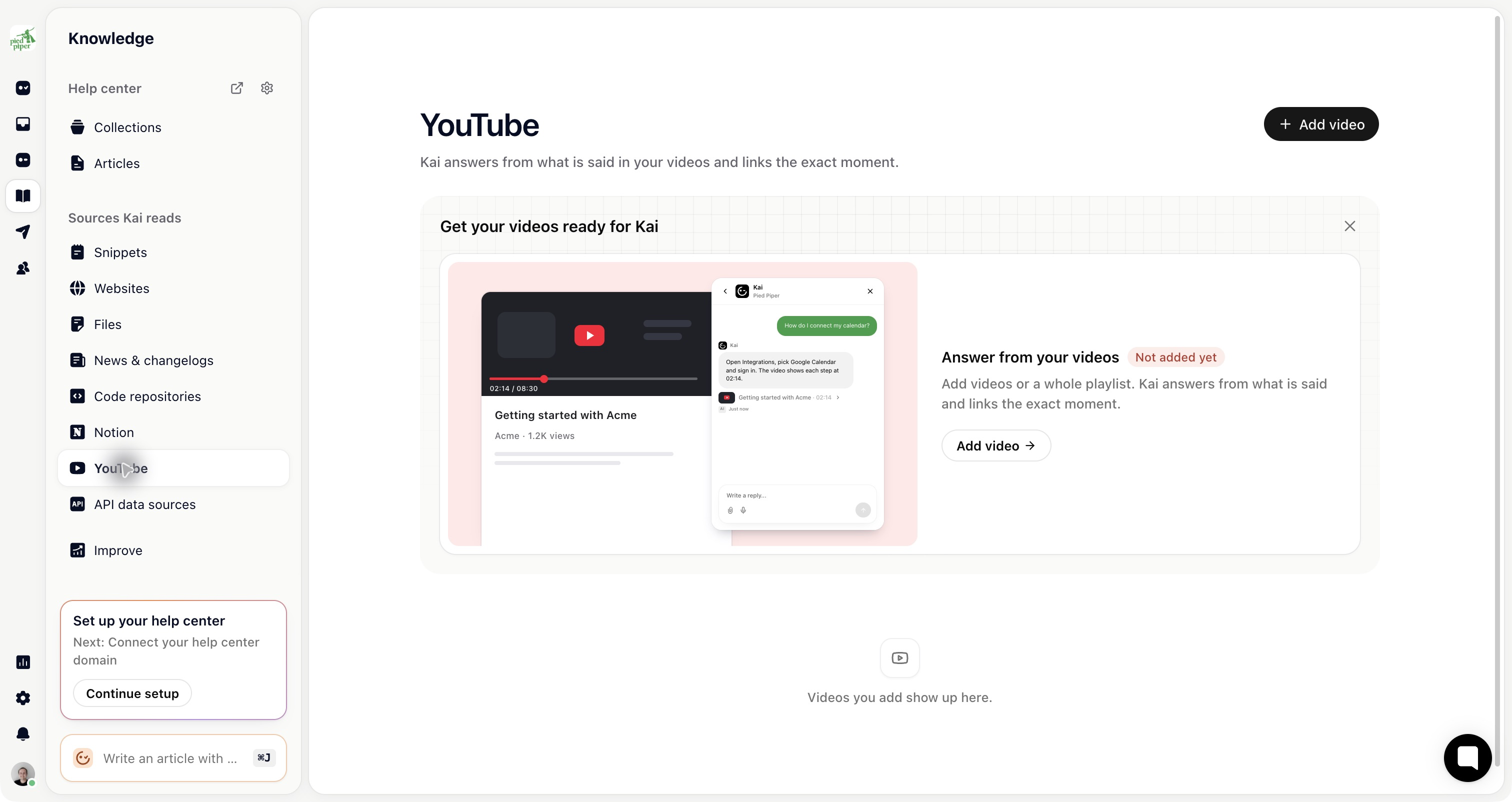
Not everything worth teaching the AI needs a help article. Open Knowledge for Snippets, Files and YouTube, grouped under Sources Kai reads.
A snippet is text written for the AI and published nowhere. It's the right home for anything true but not presentable: how you word a known issue while a fix is pending, the exception to your refund policy, the feature that's coming next quarter.
Snippets are also the fastest fix when an answer is wrong. Two or three sentences take a minute. A proper article can wait until you know the question keeps coming.
Open Snippets under Knowledge.
Choose New snippet.
Write the Question a customer would ask and the Answer.
Optionally add a Read more link that customers get when Kai Support answers from this snippet, pick a Folder, and add Tags. Tag it internal if customer-facing answers shouldn't use it.
Choose Create snippet.
Snippets aren't limited to short facts. The answer is a rich-text editor, so one snippet can hold a whole checklist, runbook or troubleshooting guide with headings and lists, and you edit it in Gleap whenever it changes. If you were about to split a long document into many small snippets, or upload it as a file just to keep it out of your help center, write it as one snippet instead.
Folders keep a long list tidy. They only organise your snippets: Kai Support reads all of them, whatever folder they're in.
If you already have this material in a spreadsheet, such as an FAQ list or a table of known issues, open the Snippet actions (⋯) menu next to New snippet and choose Import from CSV. Export to CSV gives you the same format back.

Open Files under Knowledge.
Choose Upload files.
Drop the file into Upload a file. PDF, Word, PowerPoint, Excel, CSV, Markdown and plain text work, up to 74 MB.
The file shows as Processing, then Indexed. It's useful for manuals, spec sheets and onboarding decks nobody will ever rewrite as articles.
An upload is a copy. Later changes to the original document don't come through. For material that keeps changing, keep it as a snippet, or connect Notion with Sync content.
Two kinds of file convert less well than you'd hope. Slides often carry their meaning in the layout, so a deck can arrive as a list of disconnected phrases. Spreadsheets lose the link between a value and the row and column that gave it meaning. Documents written as prose, such as manuals, policies and guides, come through well. For the other two, check what the AI actually answers before you rely on them.
Importing YouTube videos is available on the Team plan and up.
Open YouTube under Knowledge.
Choose Add video.
Paste a video, playlist or channel URL into YouTube URL. A preview shows what will be imported.
Choose Import. The button shows the estimated cost first.
Videos from a playlist or channel appear one by one as they're found. It works best on videos where someone explains something out loud. A screen recording with music and no narration has nothing to extract, however clear it is to watch.
How much video you can import depends on the plan. Team includes 10 hours of video a month and Pro 40 hours, with up to 2 hours per video. One playlist or channel import takes up to 50 videos on Team and 200 on Pro. Videos you already imported are skipped. Workspaces on plans from before the 2026 pricing keep their previous limits.
Use a snippet when you know the answer and just need the AI to know it too, or when you want to write and maintain a document inside Gleap. Use a file when the answer already exists as a document. Use YouTube when it only exists as someone explaining it.
When a snippet keeps proving useful, it's a strong sign it should become a help article. The question is clearly common, and customers who search for it would find an article too.