A public report link lets anyone who has the link see selected custom report pages without signing in. It shows the numbers the person who created it is allowed to see. Creating or managing links requires the report-sharing permission.
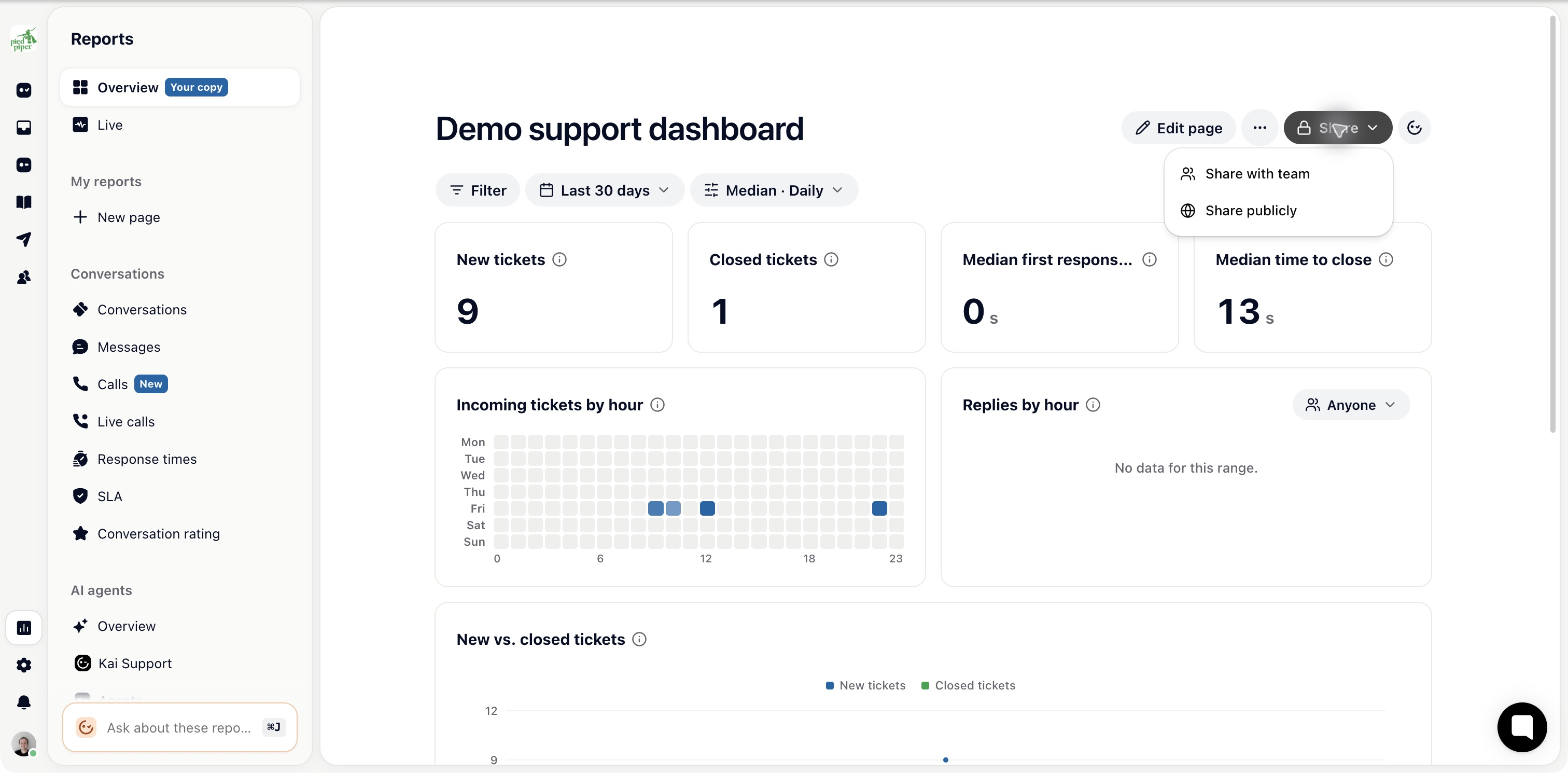
Open a custom page under Reports.
Choose Share → Share publicly. This creates an active public link immediately and opens its settings.
Review the selected pages, display and Hide teammate names option.
Open the link to check the result before passing it on. Disable or delete it if the report should no longer be public.
The display options include a report page and a TV display. For a display with several pages, choose the time per page.
Check the report data, page selection and Hide teammate names option. Hiding names does not remove the underlying report values.
Treat the URL as access to the report: a recipient can forward it. Share only pages intended for that audience.
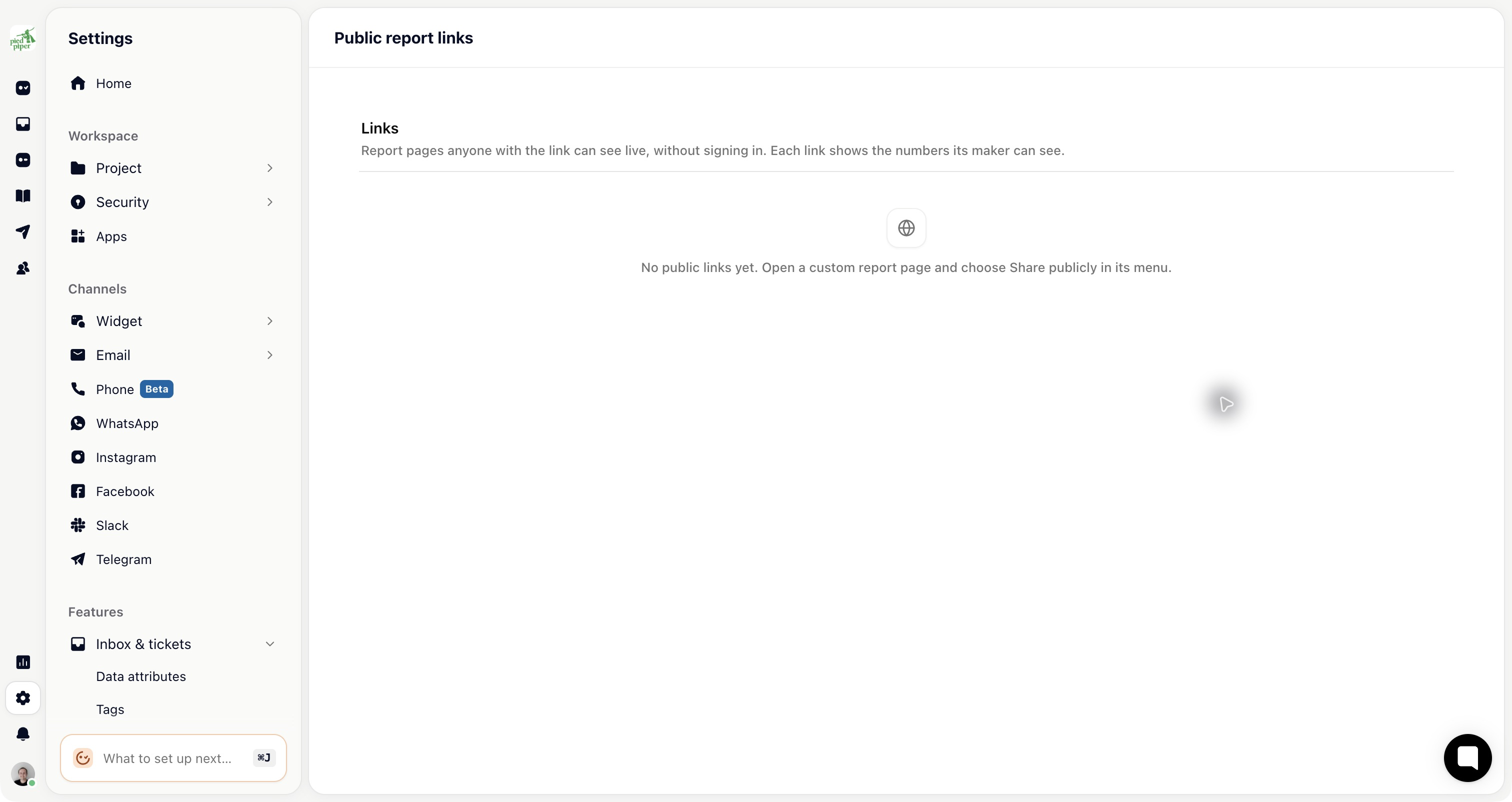
Open Settings → Inbox & tickets → Public report links to see existing links, their pages and display, who made them and their activity.
With permission, you can switch a link off, Copy link, Renew link or delete it. Renewing changes the URL, so update any display or bookmark that uses the previous one.
Someone who can read reports may see the link inventory without having permission to reveal or manage the URLs.

