The messenger can follow your product's theme: light colours on a light page, dark colours on a dark one. On websites it picks up the theme your site uses, and in mobile apps it follows the phone's light or dark setting. You set the dark colours once, and the switch happens on its own.
Go to Settings → Widget → Look & feel.
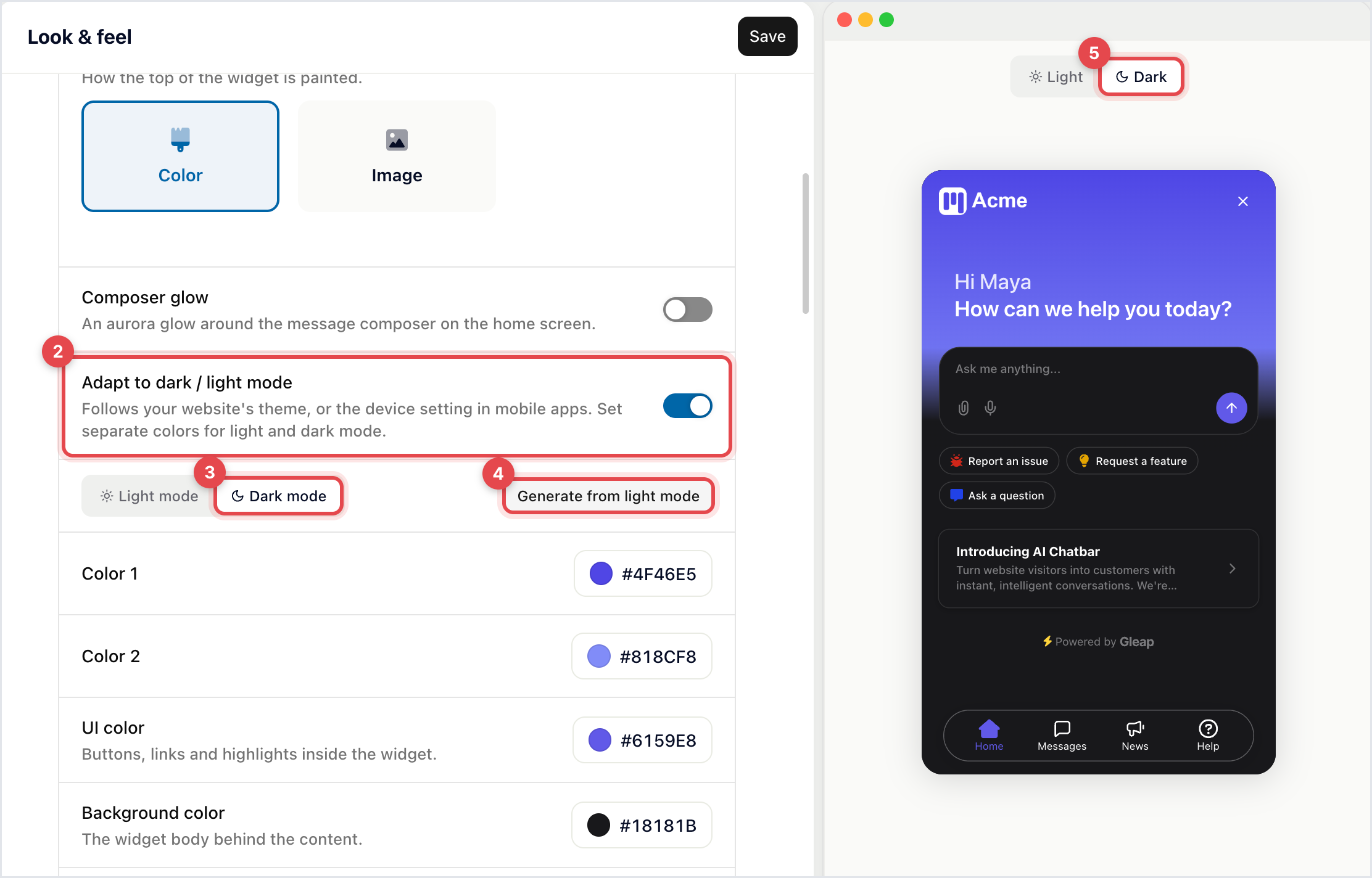
Turn on Adapt to dark / light mode.
Click Dark mode in the toggle that appears.
Click Generate from light mode for a starting point, or set the colours yourself: the header colours, UI color (buttons, links and highlights) and Background color.
Check both modes with the Light / Dark switch on the preview.
Click Save.
The messenger now uses your dark colours whenever your site or app is dark.
Each mode has its own header colours, UI colour, background colour, header logo, background image and composer glow colours. A colour without a dark value keeps its light one, and the button colour is the same in both modes. The launcher, notifications, info cards, the AI chatbar and checklists switch along with the messenger. If a colour is hard to read on the background, Gleap warns you and suggests a better one.
Websites: the messenger looks for your site's theme in this order: a dark or light marker on the page (such as a dark class or a data-theme attribute), the page's CSS color-scheme, the page's background colour, and finally the visitor's system setting. When your site switches theme, the messenger switches with it.
iOS: it follows your app's interface style, including a style you force in the app.
Android: it follows your app's night mode.

If your product has its own theme switch, tell the messenger which mode to use. This overrides the automatic detection:
// "auto", "light" or "dark"
Gleap.setColorScheme("dark");

// Optionally match your own background colours
Gleap.setColorScheme("auto", {
  lightBackgroundColor: "#ffffff",
  darkBackgroundColor: "#0b0b0f",
});
You can call it before or after Gleap.initialize. iOS, Android, Flutter, React Native and Capacitor have the same method; see the dark mode guide for your SDK in the developer documentation.

setColorScheme does nothing while Adapt to dark / light mode is off. Turn the switch on first.
