Connect your issue tracker so bugs and requests from customers land where your developers plan their work, and connect Slack so your team hears about new tickets without watching the inbox. This article covers Jira, Linear, GitHub, GitLab and Slack notifications. Available on Team and up. Only project admins see Connectors in Settings.
Go to Settings → Connectors and click Add connector.
Search for the tool, for example Jira, and click Connect.
Tick what it should do. For trackers this is Send tickets; for Slack it is notifications. Click Continue with Jira (the button names your tool).
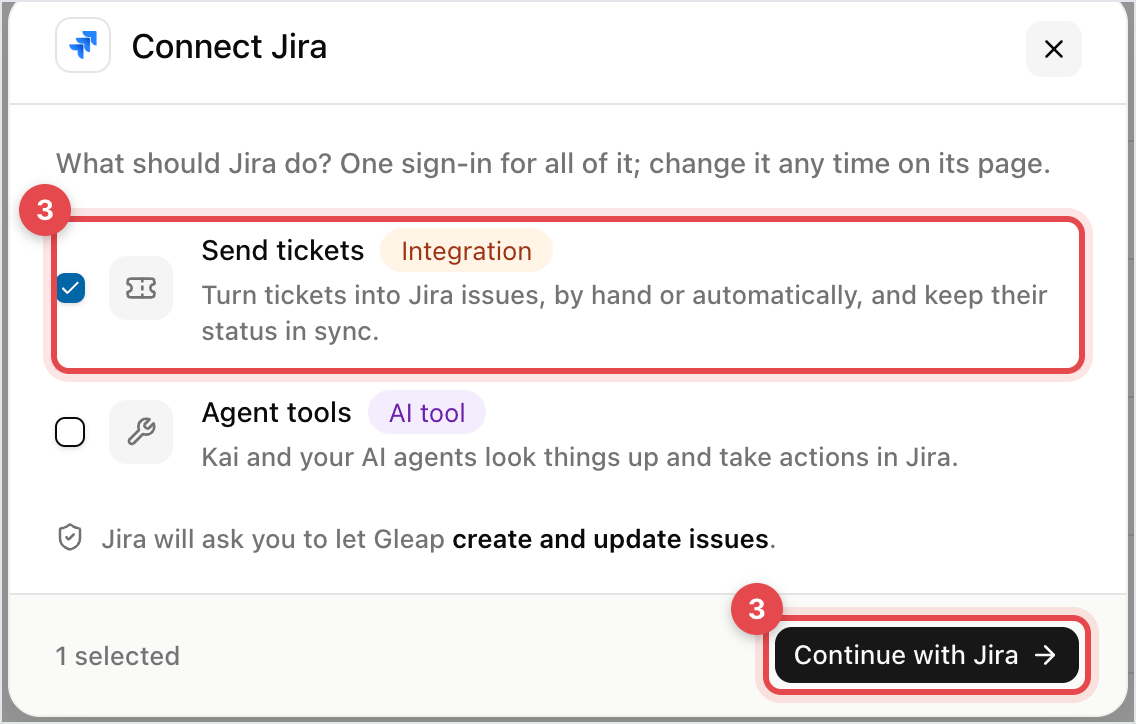
Click Connect with Jira, sign in and approve Gleap in the tool, then come back to Gleap.
Under Finish setting up, choose where tickets go:
Jira: Organization, Project and Issue type. If your Jira project has required fields, fill them in under Required by your Jira project, or Jira refuses the issue.
Linear: Team, and optionally Project (Optional).
GitHub: Repositories. Fetching them can take a moment.
GitLab: Projects.
Slack: Channel.
Click Done. The tool now shows under Connected on the Connectors page.
To send to a second Jira project, Slack channel or GitHub repository, open the connection and click Add project, Add channel or Add repository. These reuse your sign-in. Linear and GitLab need their own connection per destination.
Open the connection and go to Advanced:
Send tickets automatically: new tickets go to the tool without anyone clicking. Use Ticket types to pick which ones. New connections start with bugs, feature requests and inquiries ticked, so untick what your developers don't need.
Mark as done when sent: closes the Gleap ticket once it's in the tracker.
Send duplicates, Don't send personal data and Don't send internal notes control what travels with the ticket.
Forward new comments (when sending by hand): later comments on the ticket are added to the issue too.
Open the ticket.
In the sidebar, find Integrations and click Send to integration.
Pick the connection. A link to the created issue appears in the same section.
You can also add a Send to integration step to a workflow. It does exactly what the button does.
Tool | Status changes | Comments |
|---|---|---|
Jira | Yes | Yes |
Linear | Yes | Yes |
GitHub | Yes (opened, labelled, closed) | No |
GitLab | No | No |
Comments from the tracker arrive on the ticket as an internal note, starting with "Comment from" and the author's name. Status changes are added to the ticket's history so you can see where the issue stands.

Slack posts a card for each new ticket into your channel, with links to the ticket, and keeps later replies in a thread under it.
Channel: private channels appear once you've added the Gleap app to them in Slack. Refresh the page afterwards.
Send fewer details: only the email, ticket type and form data are posted.
2-way sync: replies in the Slack thread are synced back to the ticket.

Want customers to open tickets from a Slack channel instead? That's a channel, not a notification: see the article on taking support requests from Slack.
To remove Gleap from your Slack workspace completely, disconnect it here and also remove the Gleap app in Slack (Settings & administration → Manage apps).

