Kai Code is Gleap's coding agent. It reads your repositories, investigates a bug report or feature request, changes the code and opens a pull request, right from the ticket. Once the fix is merged, it can tell the customer. Kai Code is available on Team and up, including the 7-day trial. Using it needs the Kai Code permissions Cloud coding, Local coding and Settings, which Administrators and Managers have by default.
Kai Code works in the repositories you connect to the project. Do this once per project.
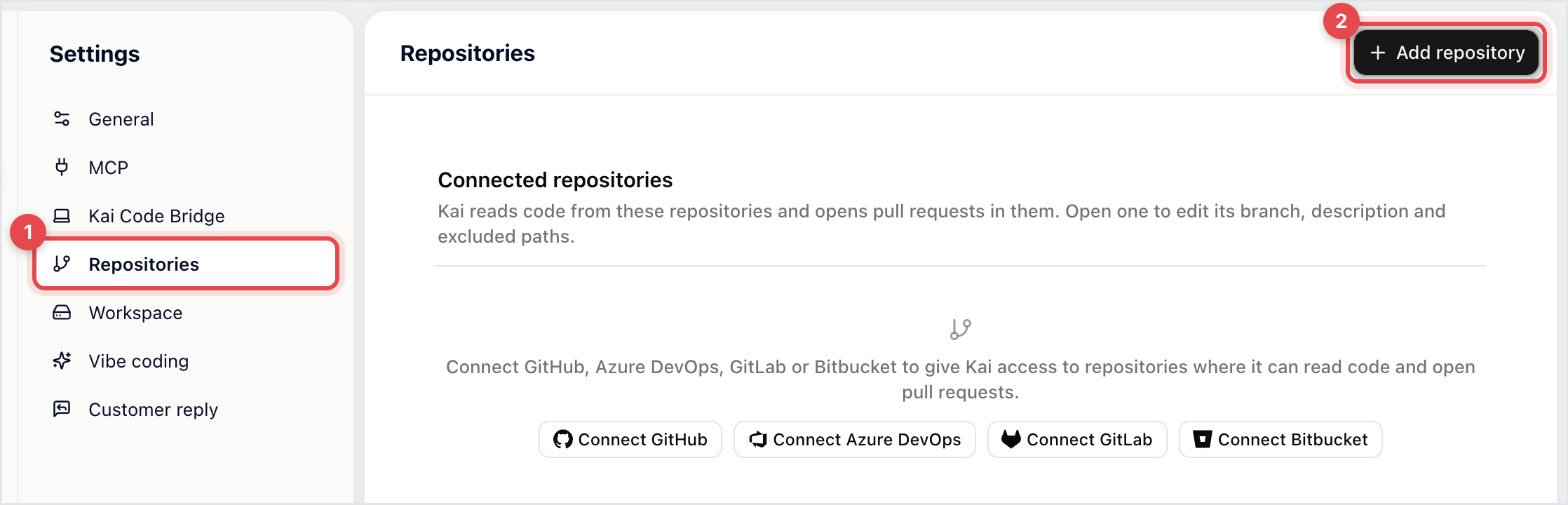
Go to AI & Automation → Kai Code, click Settings in the sidebar and open Repositories.
Click Add repository and pick the provider: GitHub, Azure DevOps, GitLab or Bitbucket. If it isn't connected yet, Gleap takes you through its sign-in first.
Pick the repository and set the Default branch. Kai starts from it and opens pull requests against it.
Click Add repository.
The repository appears in the list, ready for the next session. A short description of your stack helps Kai's first attempts.
Open a bug report, feature request or inbox conversation. In the ticket's details you see the Kai Code card: "Kai Code picks up this ticket, fixes it, and reports back."
Click Fix with Kai Code. A Kai Code session opens next to the ticket with the ticket already attached: its conversation, screenshots, replay and logs. The repository chip says Repos: Auto, so Kai picks the repositories from the ticket.
Add any instructions and send.
A ticket has one running session at a time; while it runs, the card shows Open running session. In a ticket, Shift+C opens Kai Code from the keyboard.
You can also start without a ticket: on the Kai Code page click New session (or press C) and answer "What should Kai Code work on today?". Sessions are visible to your team unless you click the lock in the composer to make one Private. Sessions started from a ticket are always visible to the team.
Each person chooses where their sessions run, with the Run on picker in the composer. The choice is fixed once you send the first message.
Option | What it uses | Cost |
|---|---|---|
Kai Code Cloud | Gleap's sandbox. Nothing to install. | API usage pricing, from your organisation's AI balance. |
Kai Code Bridge | Your computer or server, with your own Claude Code, Codex or Cursor login and your local checkouts. Set it up with | Not billed by Gleap. |
Open in Claude Code, Open in Codex, Open in Cursor | Your own coding app. Pick it from the arrow next to Fix with Kai Code on the ticket. Your last choice becomes the button's default. | Your app's own subscription. |

On Team, cloud sessions use the default model; picking another model needs Pro. In the Gleap desktop app you can also run local models (Ollama or any OpenAI-compatible server), which Gleap doesn't bill either.
Plan or Build: new sessions start in Plan, where Kai drafts a plan first. When it's done, Kai asks "Implement this plan?". Choose Yes, implement this plan, or No, and tell Kai what to do differently and say what to change. Build lets Kai edit code and open pull requests straight away.
Pull request bar: every pull request Kai opens shows above the composer with its state. When checks fail, the branch has conflicts or is out of date, click Ask Kai to fix. If an admin switched on Merge from Gleap under Settings → General, project admins can squash-merge a GitHub pull request with Merge once it's ready. Otherwise you review and merge in your provider as usual.
Artifacts: Kai can publish a page, such as a report, in the session. Open it in the side panel; Share creates a link anyone can open without signing in.
For sessions started from a ticket, Settings → Customer reply decides what the customer hears: A teammate confirms it’s live (the default), Automatically after the deploy delay, or Don’t message the customer. With Tell the customer it’s on its way on, Kai also lets the customer know as soon as the pull request is ready. See customer replies in the developer docs for every option.
Tab | What it holds |
|---|---|
General | Default model and effort, custom instructions for every session, repository routing, and Merge from Gleap. |
MCP | MCP servers that give Kai Code extra tools, such as your issue tracker. |
Kai Code Bridge | Your paired machines, their coding agent sign-ins, and machines teammates shared with you. |
Local LLM | Local models. Shown in the Gleap desktop app only. |
Repositories | Connected repositories, their default branch, description and excluded paths. |
Workspace | Environment variables, setup commands and Kai Code's memory of the project. |
Vibe coding | Lovable, Replit, v0 and Base44 accounts, for apps that live on those platforms. |
Customer reply | What the customer hears when a fix is ready, merged or still broken. |
For the full reference, see the Kai Code developer docs, including sessions and repositories.

