Connect your online shop and your team sees each customer's orders next to the conversation. Kai can answer "where is my order?" itself, recommend products, check discount codes and start a return. This article covers WooCommerce and Your shop API, for a shop you built yourself. For Shopify, see its own article. Available on Team and up. Only project admins see Connectors in Settings.
The plugin is the easiest way. It also syncs your shop's customers as contacts and recognises signed-in customers in the messenger.
In WordPress, go to Plugins → Add New, search for Gleap and install it.
Open Gleap in WordPress and click Connect to Gleap.
Gleap opens in your browser. Pick the Project, or use Create and connect for a new one, then click Connect.
The WooCommerce connection in Gleap now shows Connected.
Go to Settings → Connectors, click Add connector, search for WooCommerce and click Connect. Under What should WooCommerce do?, keep the jobs you want ticked and click Continue with WooCommerce.
Enter your Store address, for example https://shop.example.com.
Click Connect with WooCommerce. Your store opens and asks you to approve read and write access for Gleap.
If that doesn't work for your store, open Enter keys manually. In WordPress, create a key under WooCommerce → Settings → Advanced → REST API → Add key with Read/Write access, paste the Consumer key and Consumer secret, and click Save keys.
Without the plugin, orders and returns work, but contacts don't sync. To let Kai show signed-in customers their orders, turn on Show signed-in customers their orders, which needs identity verification.
Your shop needs a small API that Gleap can call. The developer guide Your shop API describes the endpoints and the JSON they return.
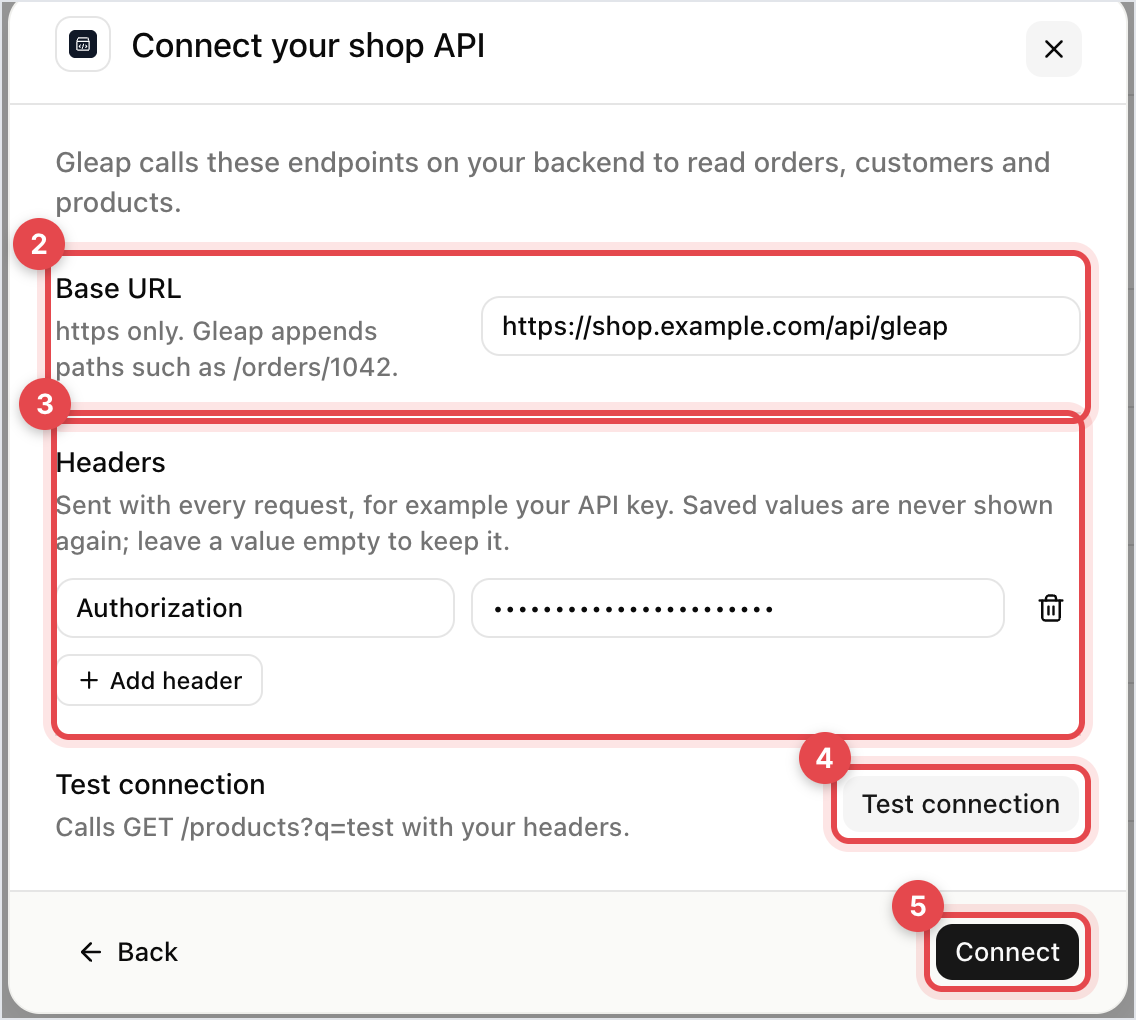
Go to Settings → Connectors, click Add connector, search for Your shop API and click Connect. Under What should your shop API do?, keep the jobs you want ticked and click Continue with your shop API. The Connect your shop API form opens.
Enter the Base URL of your API. It must use https. Gleap adds paths such as /orders/1042 to it.
Under Headers, add what your API needs to accept the call, usually Authorization with a Bearer token. Click Add header for more.
Click Test connection. Gleap calls GET /products?q=test with your headers.
Click Connect. The dialog says Your shop API connected; click Done.
Open the connection. Under What Kai can do, switch on:
Kai looks up orders: order status, shipping and tracking, only for the customer who placed the order.
Kai recommends products.
Kai starts returns: the customer confirms in the chat. With WooCommerce you get a note on the order and send the return label yourself. With your shop API, Gleap calls your returns endpoint.
Kai shares discount codes: Kai checks that a code is valid before it shares it.
Kai shows the results as cards in the chat, for example a form to find an order by number and email. On projects with the new agent view, you set these on the Skills page instead, where returns start as asking the team first.

When the customer is matched to an order, the ticket sidebar shows a WooCommerce or Shop panel with their orders, and buttons such as Open order and Track package. A customer matched only by email, without a verified login, is marked Matched by email, not verified.

