Connect your billing tool and your team sees what a customer pays for, their invoices and any failed payment right next to the conversation. Kai can answer questions like "when does my plan renew?" from the same data, and make changes such as pausing a subscription when you allow it. This article covers Paddle, RevenueCat and Lemon Squeezy. Stripe and Chargebee have their own articles. Available on Team and up. Only project admins see Connectors in Settings, and you can connect one account per tool.
Go to Settings → Connectors, click Add connector, search for the tool and click Connect. Under What should followed by the tool's name, keep Inbox panel and Kai answers billing questions ticked and click Continue with followed by the tool's name.
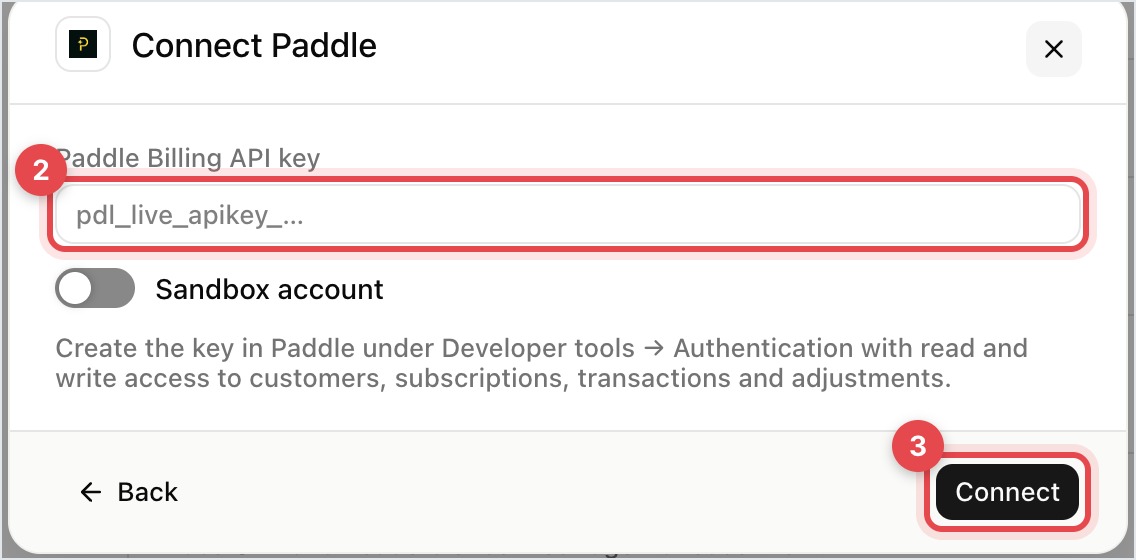
Paste the key:
Paddle: a Paddle Billing API key. Create it in Paddle under Developer tools → Authentication with read and write access to customers, subscriptions, transactions and adjustments. Turn on Sandbox account for a sandbox key. Paddle Classic isn't supported.
RevenueCat: a Secret API key (v2) with read access to customers, subscriptions and products, plus your Project id.
Lemon Squeezy: a Lemon Squeezy API key from your Lemon Squeezy dashboard.
Click Connect. Gleap checks the key before it saves it. Once it's connected, click Done.
The ticket sidebar shows a panel named after the tool with the customer's Subscriptions and Invoices. Open in jumps to the customer in your billing tool, and Portal link copies a link to their billing portal. The panel's menu offers the changes you allow, such as Pause, Cancel at period end or Refund. Sandbox and test keys show a Test badge. If nothing matches, the panel says there's no customer for that contact.
Open the connection and go to Billing actions. Choose one mode per action: Off, Kai and teammates or Teammates only.
Action | Paddle | Lemon Squeezy | RevenueCat |
|---|---|---|---|
Billing portal link | Yes | Yes | Yes |
Update billing details | Yes | Yes | No |
Pause, resume or cancel subscription | Yes | Yes | No |
Apply retention discount | Yes | No | No |
Refund | Yes | Yes | No |
Kai never changes anything on its own: the customer confirms on a card in the chat, or a teammate approves. Cancelling and refunds start as Teammates only, and a refund can only ever be run by a teammate. A refund can't be more than the customer paid. For the retention discount, enter the Paddle Discount id that Kai may offer.
On projects with the new agent view, these modes live on the Skills page instead (Open Skills). There the modes are Automatic, Ask the team and Off, and a refund can run automatically up to an amount you set.

Kai only shows billing details in the chat to customers it can tie to their billing account through a verified login, which needs identity verification. Paddle and Lemon Squeezy can't be searched by your user ID, so Kai emails those customers their billing portal link instead. RevenueCat matches your app user IDs automatically. Everyone else gets the portal link by email.
Your teammates need permission to run billing actions. You find it in the role editor under Inbox management (advanced).

